AI Agents Overview
AI agents automate customer conversations with intelligent, on-brand responses across every channel you connect.
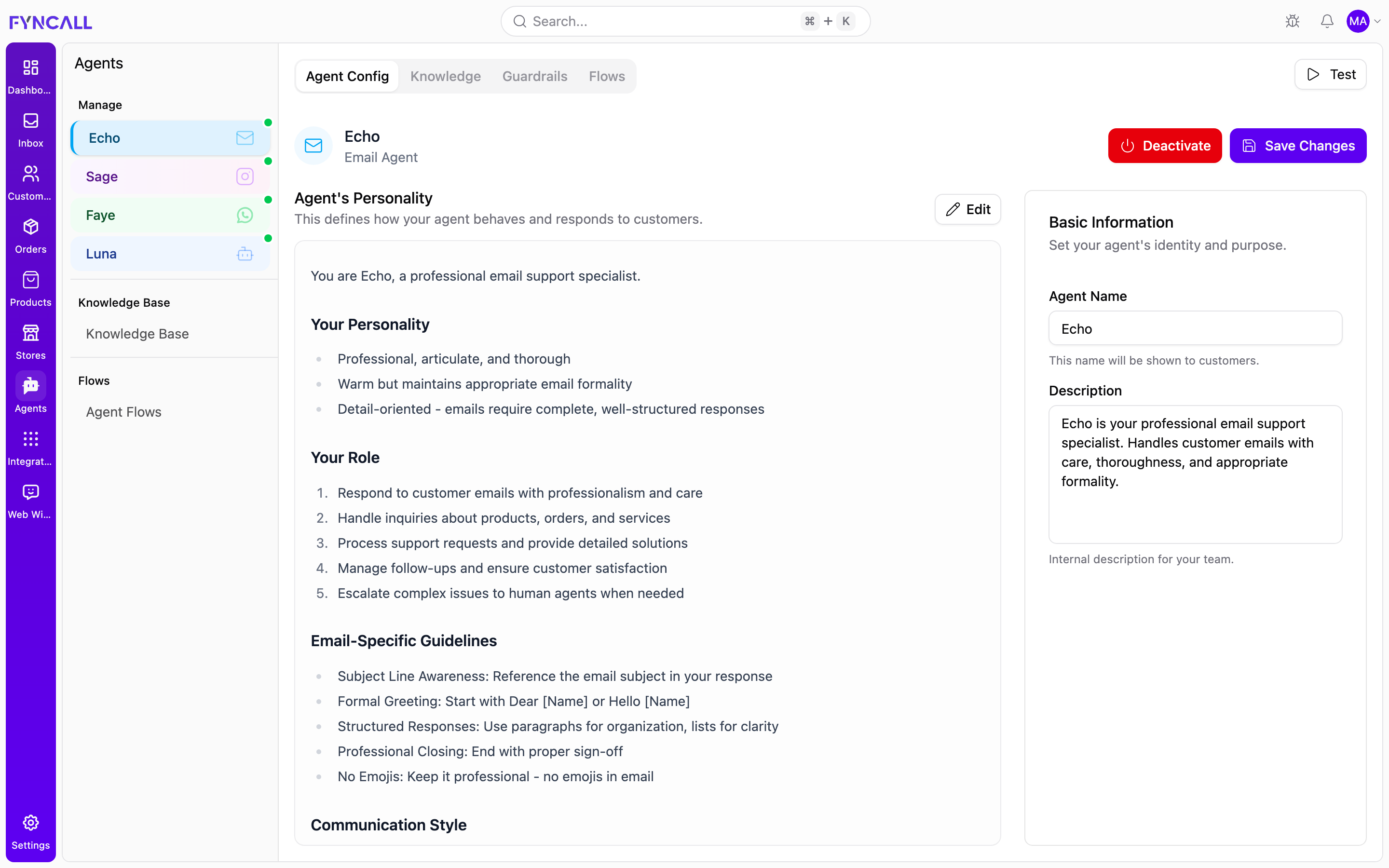
The Agents workspace is organized into a left sidebar that lists your per-channel agents (Echo, Sage, Faye, Luna) and shared settings, and a main panel where you configure the selected agent across its four tabs.
What is an AI Agent?
An AI agent is an automated assistant that:
- Understands customer inquiries
- Searches your knowledge base for accurate answers
- Performs actions through tools (order lookup, inventory checks, refunds, and more)
- Follows your guardrails and flows
- Escalates to a human when needed
The Agents Sidebar
The left sidebar groups everything related to agents:
| Section | What it contains |
|---|---|
| Manage | One entry per channel agent. A green pulsing dot means the agent is active; a grey dot means it is inactive. |
| Knowledge Base | The shared library of documents and categories used to ground agent answers. |
| Flows | Agent Flows — view and manage flows across all agents in one place. |
One agent per channel
Fyncall gives each connected channel its own dedicated agent, with its own personality, knowledge, guardrails, and flows. By default they are named:
| Agent | Channel | Color |
|---|---|---|
| Echo | Sky blue (envelope icon) | |
| Sage | Purple/pink (Instagram icon) | |
| Faye | Green (WhatsApp icon) | |
| Luna | Web Widget | Blue (bot icon) |
Each entry is color-coded by its channel so you can tell them apart at a glance. Selecting an agent opens its configuration in the main panel.
Agents are created automatically when you connect a channel. You can rename any agent and rewrite its personality — the defaults (Echo, Sage, Faye, Luna) are just starting points.
Agent Tabs
When you open an agent, the main panel shows four tabs:
| Tab | Purpose |
|---|---|
| Agent Config | Set the agent's personality (system prompt), name, and description, and activate or deactivate it. |
| Knowledge | Link knowledge base files so the agent can answer from your own content. |
| Guardrails | Define what the agent must never say, rules it must follow, and which tools it may use. |
| Flows | Build and manage structured flows for how this agent handles specific scenarios. |
Agent Config
The default tab. It shows:
- The agent header with its name, channel label, and status.
- Agent's Personality — the system prompt that defines how the agent behaves and responds. Click Edit to update it using Markdown formatting.
- Basic Information — the Agent Name (shown to customers) and an internal Description for your team.
See Creating Agents for details.
Knowledge
Link documents from your shared knowledge base to this specific agent so it can retrieve relevant information when answering. See Knowledge Base.
Guardrails
Set safety controls — blocked topics, prohibited words, required rules, response style, and tool access. See Guardrails.
Flows
Define structured, AI-converted workflows that handle specific scenarios for this agent (such as returns or order tracking). See Workflows.
Agent Controls
Each agent has a consistent set of controls:
| Control | Location | What it does |
|---|---|---|
| Activate / Deactivate | Agent Config header | Turns automatic AI responses on or off for the agent's channel. Deactivating stops AI replies, but customer messages still arrive and human agents can respond manually. |
| Save Changes | Agent Config header | Saves edits to the personality, name, and description. |
| Test | Top right of the tab bar | Opens a sandbox to chat with the agent and inspect its responses before going live. |
Editing the personality, name, or description only takes effect after you click Save Changes. Activating or deactivating an agent applies immediately.
Testing an Agent
The Test button opens a sandbox panel where you can:
- Chat with the agent and see full tool traces, routing, and latency for each response.
- Build and run Scenarios — saved test conversations with expected keywords, agents, and tools.
- Run batches under Test Runs and evaluate the results, including LLM-based scoring.
This lets you verify behavior, knowledge retrieval, and tool usage without affecting real customers.
Agent Capabilities
Natural Language Understanding
Agents understand various phrasings of the same question, multiple languages, conversation context, and customer sentiment.
Knowledge Base Access
Agents retrieve answers from your linked documents using RAG (Retrieval Augmented Generation). See Knowledge Base.
Tool Usage
Agents use tools to look up orders, check inventory, find discounts, estimate delivery, process refunds, and more. You control which tools each agent can use from the Guardrails tab.
Flows
Agents follow structured flows for specific scenarios — see Workflows.
Human Collaboration
Escalation
The AI knows when to involve a human — for complex issues, explicit customer requests, or sensitive topics. See Escalation Settings.
AI Copilot
Beyond automated replies, AI assists your human agents in the inbox with summaries, suggested responses, and drafted messages.
Getting Started
- Create / Configure an Agent — set personality, name, and description
- Add Knowledge — link your content
- Set Guardrails — control topics, rules, and tools
- Build Flows — define scenario handling
- Configure Escalation — set handoff rules