Order Details
Click any order in the Orders list to open its detail page. This is your complete view of a single order — line items, customer, payments, shipping, timeline, refunds, and every action you can take.
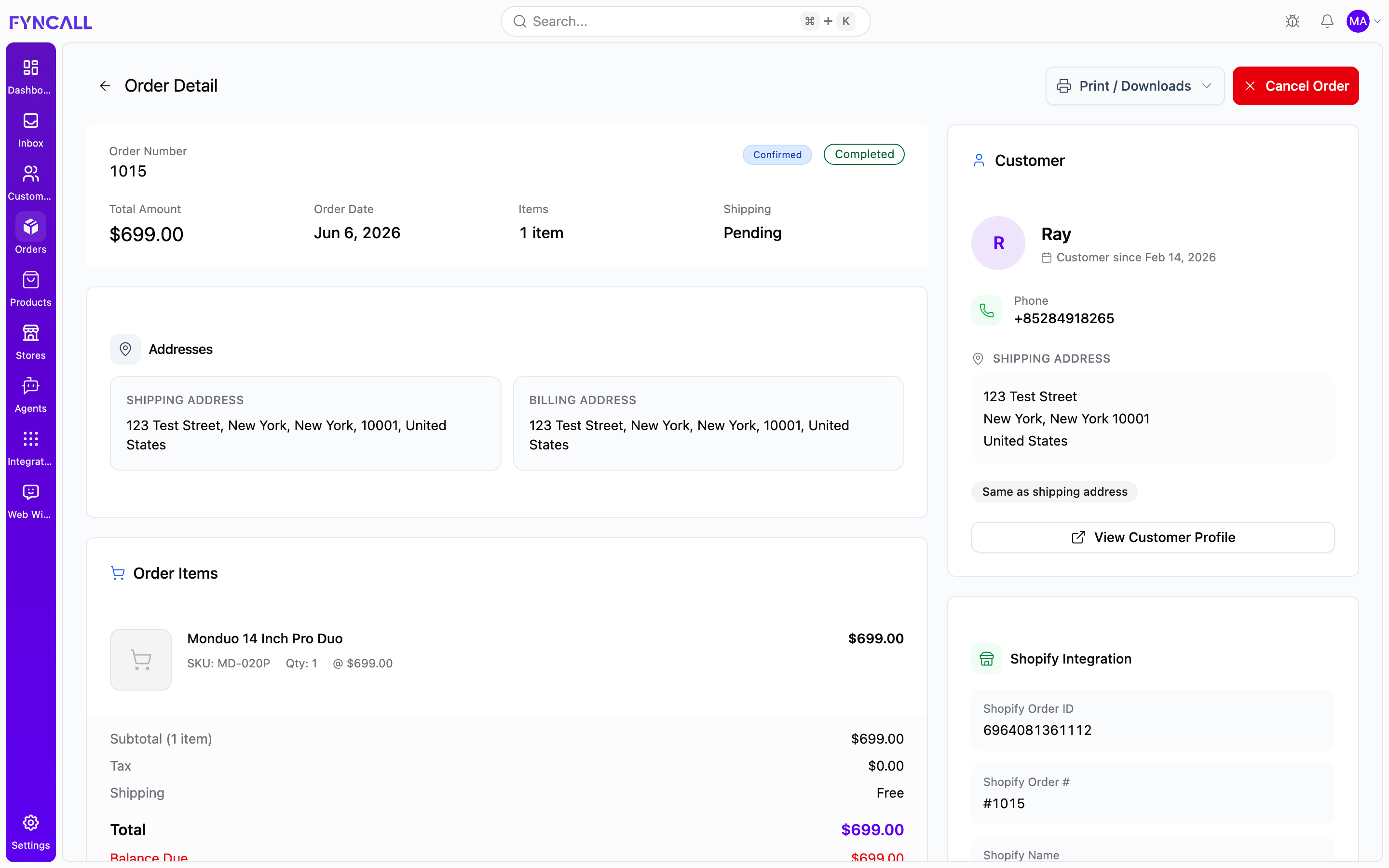
The page is laid out as a header (with actions) plus two columns:
- Left column — order details, items and totals, timeline, and refunds.
- Right sidebar — customer information and (for synced orders) Shopify details.
Header actions
The top of the page shows a back button, the title Order Detail, and these actions:
Print / Downloads
The Print / Downloads menu generates and opens documents for the order. The available items depend on the order's state:
| Document | Available when |
|---|---|
| Invoice (Print / View) | Invoice document is available for the order. |
| Packing Slip (Print / View) | The order requires shipping. |
| Receipt (Print / View) | The order has a paid / completed payment. |
A Quick Downloads section also offers Download Invoice PDF, Download Packing Slip PDF, and Download Receipt PDF.
While a document is being prepared it shows Generating.... A document preview dialog lets you page through the file, zoom in and out, then Save or Print.
If generation fails you'll see Failed to generate document. Try again, or check that the order has the data the document needs (for example, a paid payment for a receipt).
Create Refund
The Create Refund button appears when the order is Delivered, or when it is Cancelled but the payment was already paid. It opens the refund panel described in Refunds.
Cancel Order
The Cancel Order button (red) appears for orders that are not already Cancelled, Completed, Refunded, or Delivered. See Cancelling an order.
Order summary
The order summary card shows the core facts of the order:
| Field | Description |
|---|---|
| Order Number | The order's reference number. |
| Status badges | Order status and payment status. |
| Total Amount | The order total. |
| Order Date | When the order was placed. |
| Items | Number of items (for example 2 items). |
| Shipping | One of Delivered, Shipped, Pending, or Digital. |
Two extra badges may appear:
- Gift Order (pink) — the order was marked as a gift.
- Urgent (red) — the order was flagged as urgent.
Order alerts
For cancelled orders, alerts appear at the top of the summary:
- Refund May Be Required (orange) — This order was cancelled but payment was already completed.
- Order Cancelled (red) — shows the cancellation date, and the reason if one was provided (Cancelled on {date}: {reason}).
Shipping & Tracking
When tracking data exists, a Shipping & Tracking section lists the Tracking Number, Carrier, Method, Shipped date, and Delivered date. Delivery instructions, if present, are highlighted.
Addresses
The Addresses section shows the SHIPPING ADDRESS and BILLING ADDRESS. If the billing address matches the shipping address, it displays a Same as shipping address badge instead.
Notes
Any notes attached to the order appear here, color-coded by type:
- Customer Notes (blue) — notes visible to the customer.
- Internal Notes (yellow) — private team notes.
- Admin Notes (violet) — administrative notes.
Order items & totals
The Order Items card lists every line in the order. Each item shows:
- Product name and, if applicable, a variant badge.
- SKU, Quantity (Qty:), and unit price (@ price).
- Vendor, when available.
- The line's final price, with any per-item discount shown in green.
- A fulfillment status badge, when present.
Below the items, an order summary breaks down the totals:
| Line | Notes |
|---|---|
| Subtotal (n items) | Sum of line items. |
| Discount | Shown in green when greater than zero. |
| Tax (rate) | Tax amount, with the rate shown as a percentage. |
| Shipping | Shipping cost, or Free. |
| Total | The order total (emphasized). |
| Amount Paid | Shown in green when a payment exists. |
| Balance Due | Shown in red when an amount is still owed. |
Payment history
When payments exist, a Payment History card lists each payment with its method, card brand and last four digits (if a card), amount, and a status badge (for example Captured, Completed, Failed, Refunded). Each entry can also show timestamps (Authorized / Captured / Processed / Refunded / Failed), a transaction ID, failure or refund reasons, notes, and a Manual Payment badge for manually recorded payments.
Timeline
The Timeline card shows the order's history as a series of dated events, each with a colored dot (green = completed, yellow = pending, red = cancelled). Typical events include:
| Event | Meaning |
|---|---|
| Order Placed | The order was created. |
| Order Confirmed | The order was confirmed and is being processed. |
| Payment Processed | A payment was processed. |
| Order Shipped | The order shipped (with tracking, if available). |
| Order Delivered | The order was delivered. |
| Order Cancelled | The order was cancelled (with reason, if given). |
If detailed events aren't available, the timeline falls back to showing the current order status, payment status, and last-updated date. With no data at all it reads No timeline events available.
Customer information (sidebar)
The Customer card in the right sidebar shows:
- The customer's avatar (initials) and name (or Guest Customer).
- Customer since {date} for registered customers.
- Email and Phone, each with a copy button (a toast confirms {label} copied to clipboard).
- Shipping and Billing addresses (with a Same as shipping address badge when they match).
- Delivery instructions, when present.
- A View Customer Profile button that opens the full customer record.
Shopify integration (sidebar)
For orders synced from Shopify, a Shopify Integration card appears showing the Shopify Order ID, Shopify Order #, Shopify Name, Financial Status, Fulfillment Status, Last Synced time, Tags, and any Shopify Note.
The Shopify financial status can be Pending, Authorized, Partially Paid, Paid, Partially Refunded, Refunded, or Voided. The fulfillment status can be Unfulfilled, Partially Fulfilled, Fulfilled, Restocked, In Progress, On Hold, or Scheduled.
Shopify fields reflect what Fyncall last pulled from Shopify. The Last Synced time tells you how current that data is.
Cancelling an order
Click Cancel Order to open the cancellation dialog. It warns that cancelling will stop fulfillment and may require processing refunds for captured payments. Enter a Cancellation Reason, then confirm with Cancel Order (or back out with Keep Order). This action cannot be undone.
Refunds
When an order is eligible, you can issue and track refunds directly from its detail page.
Creating a refund
Click Create Refund in the header to open the refund panel. From there you:
- Select items to refund — tick each item and choose the Quantity to refund. Items that are already fully refunded are shown as All n items are already refunded. (Only successful refunds reduce the available quantity; pending or cancelled refunds do not.)
- Set a Restock type per item — Return, Cancel, No Restock, or Legacy Restock.
- Optionally add a Shipping refund amount.
- Choose whether to Restock items and set a Default restock type.
- Add an optional Reason, Internal note (team only), and Customer note (visible to the customer).
A live Refund summary shows the subtotal, tax, shipping, and total to be refunded. Click Create Refund to submit, or Cancel to close.
Refunds section
Once refunds exist, a Refunds section lists them with a Total Refunded amount and the count of successful refunds. Each refund shows its ID (with a copy button), a status badge, reason, amount, requested date, and a breakdown (subtotal, tax, shipping, restock type). Notes and the refunded/cancelled date appear when relevant.
Refund statuses:
| Status | Meaning |
|---|---|
| Pending | Refund created but not yet processed. |
| Success | Refund completed successfully. |
| Cancelled | Refund was cancelled. |
| Unknown | Status could not be determined. |
Processing or cancelling a pending refund
A Pending refund offers two actions:
- Process — opens the Process Refund dialog where you can optionally record the Payment transaction ID, Payment method, and Gateway, then confirm with Process Refund.
- Cancel — opens the Cancel Refund dialog where you can add an optional cancellation reason and confirm with Cancel Refund (or Keep Refund).
Loading & empty states
While the page loads, skeleton placeholders are shown. If data is missing you may see Order not found, Order overview not available, Customer information not available, or Timeline not available. The Shopify card is simply hidden for non-Shopify orders.