Products Overview
The Products section is your product catalog. It's where you browse, search, and manage every product you sell — whether you added it by hand, imported it in bulk, or synced it automatically from Shopify. From here you can switch between views, filter and sort the catalog, add new products, export your data, and run AI enrichment on your categories.
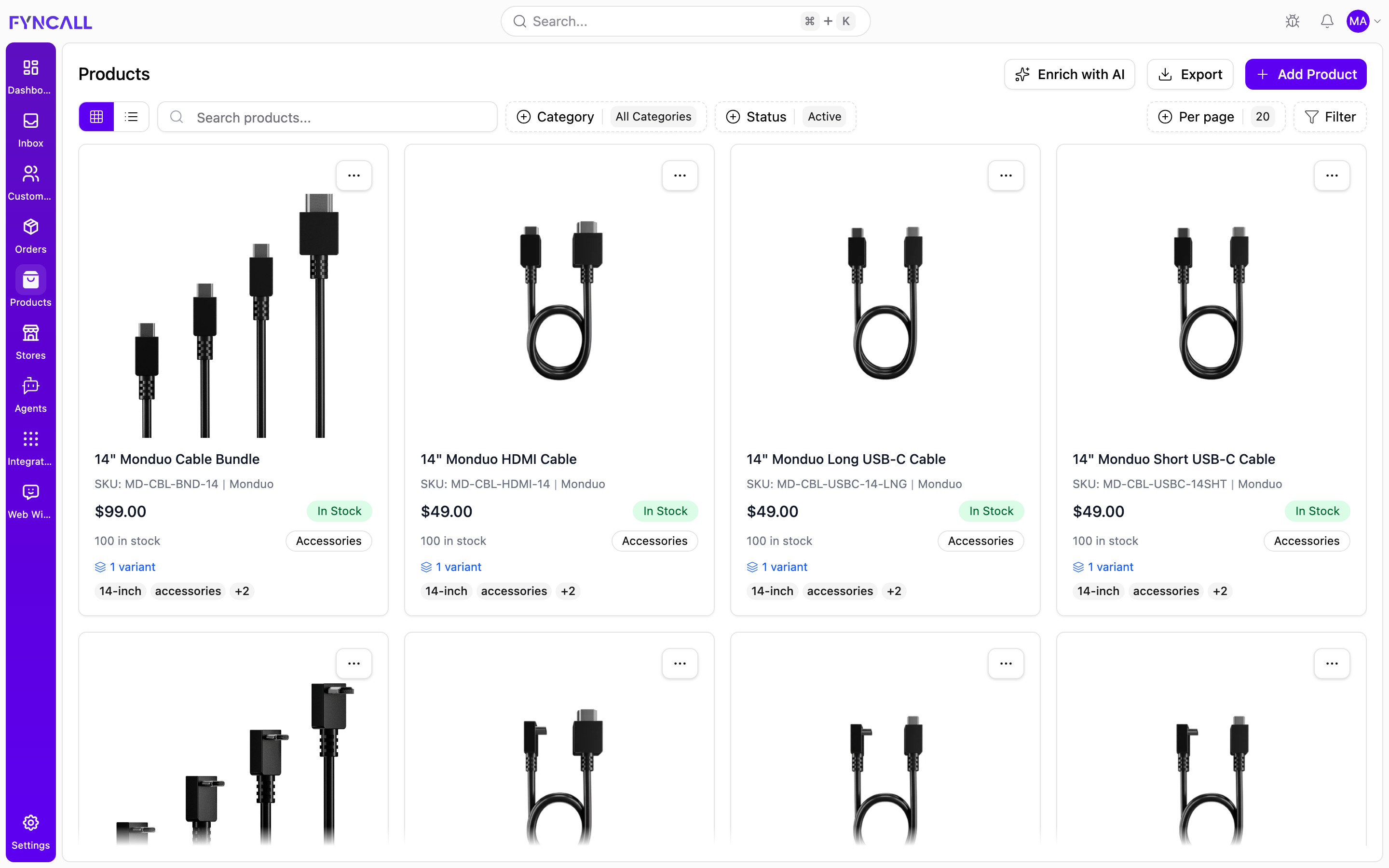
In the example above, a connected Shopify store has synced a populated catalog —
each card shows the product image, name, SKU and brand (for example
14" Monduo Cable Bundle, MD-CBL-BND-14, Monduo), the price, an In Stock
badge with the on-hand count, the Accessories category, a 1 variant
indicator, and the product's tags.
If your store is connected to Shopify, products sync in automatically and are labelled with their source. A newly connected store may take a short time to complete its first sync before products appear here.
Page layout
The Products page has three parts, from top to bottom:
- Header — the page title and the action buttons (Enrich with AI, Export, Add Product).
- Filter bar — view toggle, search, Category and Status filters, items per page, and Advanced filters.
- Catalog — your products shown as a grid or a list, with a paginator at the bottom.
Header actions
The buttons in the top-right corner control catalog-wide actions. All three require the Manage products permission, so team members without it won't see them.
| Button | What it does |
|---|---|
| Enrich with AI | Opens the AI category enrichment dialog (see below). |
| Export | Downloads your products as an Excel (.xlsx) file. |
| Add Product | Opens a dialog to add a single product or start a bulk upload. |
Add Product
Clicking Add Product opens a dialog with two choices:
| Option | What it does |
|---|---|
| Single Product | Opens the create-product form to add one product at a time. |
| Bulk Upload | Opens the bulk upload screen to import many products from a file. |
Both options are covered in Adding Products.
Export
Export generates an Excel workbook of the products currently loaded, named
products.xlsx. Each row includes Name, Description, Summary, Brand, Price,
Quantity, Image, SKU, Category, Status, and Tags.
To export your catalog:
- (Optional) Apply any search or filters first — the export reflects the products currently loaded.
- Select Export in the top-right corner.
- Wait while the button shows Exporting… and the workbook is built.
- Your browser downloads
products.xlsx. Open it in Excel, Google Sheets, or any spreadsheet tool.
Enrich with AI
Enrich with AI uses AI to fill in rich metadata for your product categories — helping your AI agents understand and recommend products more accurately. The dialog shows your current progress:
| Stat | Meaning |
|---|---|
| Total Categories | How many categories exist. |
| Already Enriched | Categories that already have AI metadata. |
| Needs Enrichment | Categories still missing AI metadata. |
| Progress bar | The percentage of categories enriched. |
For each category, enrichment generates:
- Category descriptions
- Search keywords
- Target audience segments
- Common use cases
- Category icons
To enrich your categories:
- Select Enrich with AI in the top-right corner to open the AI Category Enrichment dialog.
- Review the Total Categories, Already Enriched, and Needs Enrichment counts and the progress bar.
- Select Enrich N Categories (the button shows the number still needing metadata) to process only those categories.
- To regenerate metadata for every category (including ones already enriched), select Refresh All when it appears.
- Wait while the button shows Enriching… and the progress bar fills. When all categories are done, the action button reads All Enriched and is disabled.
View modes
On desktop you can switch the catalog between two layouts using the toggle on the left of the filter bar:
| View | Best for |
|---|---|
| Grid | A visual, card-based layout with large product images. |
| List | A compact table with one product per row. |
On mobile the catalog always uses the grid layout regardless of your selection.
Search
The search box filters the catalog as you type (with a short delay to avoid flicker). It matches against the product name, SKU, and description.
Filters
Category
The Category dropdown limits the catalog to a single category. Categories are loaded dynamically from your account, so the list reflects your real categories (including those synced from Shopify collections). Choose All Categories to clear it.
Status
The Status dropdown filters by whether a product is active:
| Option | Shows |
|---|---|
| Active | Only active products (the default). |
| Inactive | Only inactive products. |
| All | Both active and inactive products. |
Whenever a filter or search is active, a Reset button appears. Click it to clear everything and return to the full catalog.
Items per page
The per page control sets how many products are listed at once. You can choose 10, 20 (default), 50, or 100, then use the paginator at the bottom to move between pages.
Advanced filters
The Filters button opens a side panel with deeper filtering and sorting options:
| Control | What it does |
|---|---|
| Brand name | Show only products from a given brand. |
| Min price / Max price | Limit results to a price range. |
| Tags | Filter by tags. |
| Sort by | Sort by Name, Price, Quantity, SKU, Brand, Created date, or Updated date. |
| Sort order | Ascending or Descending. |
| In stock only | Hide products with zero stock. |
| Include variants | Load each product's variants. |
| Include images | Load each product's images. |
| Include category info | Load category details (on by default). |
The panel also has its own Reset button to clear all advanced filters.
The catalog
Grid view
Each product card shows:
- Image — the primary product image. If a product has several images, hover to reveal arrows and dots to page through them.
- Name and SKU (with the brand name when available).
- Price, with the original (compare-at) price struck through when the product is on sale.
- A stock badge — In Stock (green) or Out of Stock when quantity is zero.
- The in-stock count and the product's category.
- A variants indicator when the product has variants.
- Up to two tags, with a
+Nbadge if there are more.
Click a card to open the product detail page. The ⋮ (options) menu on each card lets you Edit (opens the detail page) or Delete the product.
List view
The list view shows the same products as a table with these columns:
| Column | Description |
|---|---|
| Product | Thumbnail, name, SKU, and tags. |
| Brand | Brand name (or —). |
| Price | Current price, with compare-at price struck through on sale. |
| Stock | Quantity on hand. |
| Status | In Stock / Out of Stock badge. |
| Category | The product's category. |
| Variants | Number of variants, or No variants. |
| Actions | The ⋮ menu to Edit or Delete. |
Deleting a product
To delete a product:
- Find the product in grid or list view.
- Open the ⋮ (options) menu on the card (grid) or in the Actions column (list).
- Select Delete.
- Confirm in the dialog that appears.
Deleting requires the Manage products permission.
Deleting is permanent for that product record. If the product is synced from Shopify, manage it in Shopify to avoid it reappearing on the next sync.
Empty state
When no products match your view, the catalog shows a No products message. This appears on a brand-new account (no products yet) and when your search or filters exclude everything. If you expect to see products, click Reset to clear filters, or confirm your Shopify store has finished syncing.