Inventory
The Inventory area tracks your stock levels across every product, variant, and warehouse location. It gives you an at-a-glance dashboard plus dedicated views for products that are running low or are out of stock, so you can act before you lose sales.
Inventory views are restricted to administrators. Inventory data — including locations and per-location stock — comes from your connected store, so a connected Shopify store (with the right permissions) is needed for full data.
Inventory dashboard
The dashboard is the main inventory view. At the top you'll find a sync status indicator and a Refresh button to re-pull the latest data.
KPI cards
Four summary cards show your stock health. The Low Stock and Out of Stock cards are clickable and take you straight to their detailed views.
| Card | What it measures |
|---|---|
| Total Products | Total number of products tracked. |
| In Stock | Products with available stock. |
| Low Stock | Products running low (turns amber when above zero). Click to open the low-stock view. |
| Out of Stock | Products with zero stock (turns red when above zero). Click to open the out-of-stock view. |
Totals
Below the cards are two larger metrics:
| Metric | What it shows |
|---|---|
| Total Inventory | Total units across all locations. |
| Inventory Value | Total value of stock at retail price. |
Warehouse locations
The Warehouse Locations table lists each stock location with its name (the Primary location is badged), code, address, variant count, total units, and active/inactive status. If no locations are configured, you're prompted to connect your Shopify store to sync them.
Permission and setup warnings
The dashboard surfaces two helpful warnings when data is missing:
- Missing Shopify Permissions — shown when your Shopify connection lacks the
read_locationsscope. It explains how to update permissions in the Shopify Partners Dashboard and reconnect your store. - No Inventory Locations Found — shown when products synced but no locations exist yet, with a link to Shopify's documentation on setting up locations.
Low stock products
Open this view from the Low Stock card (or /inventory/low-stock). It lists
every product/variant whose stock has fallen below a threshold.
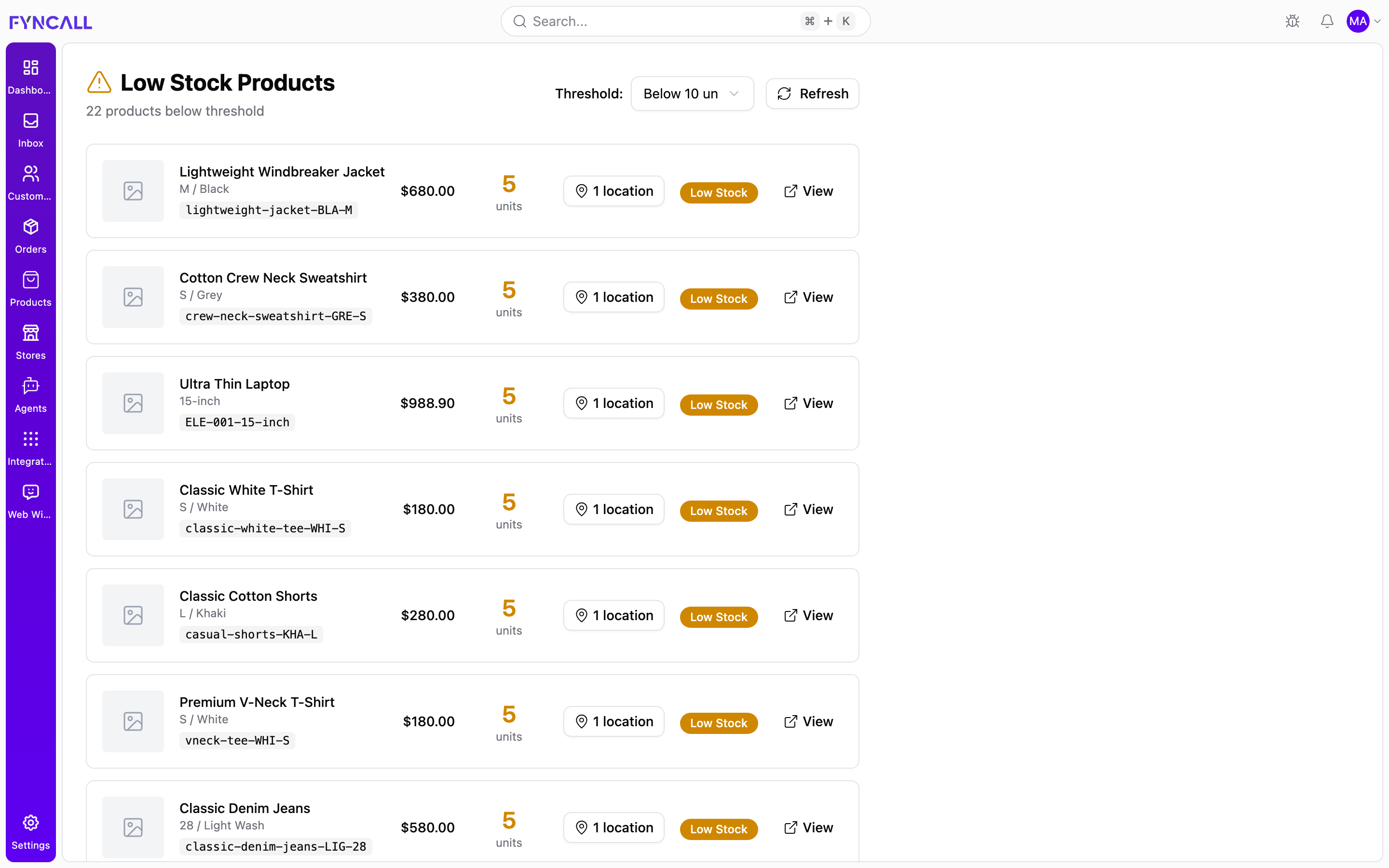
In the example above, 22 products are below the threshold — each row shows the
product (for example Lightweight Windbreaker Jacket, M / Black), its SKU,
price, on-hand units, location count, and an amber Low Stock badge.
To work the low-stock list:
- Open the Low Stock view from the dashboard card.
- Set the Threshold cutoff — Below 5, Below 10 (default), Below 20, or Below 50 units. The list and the "N products below threshold" count update to match.
- For each product that needs restocking, select View to open its detail page.
- Adjust the stock for the affected variant — see Managing variants.
- Select Refresh to re-pull the latest stock levels and confirm the product has dropped off the list.
When everything is healthy, the page shows an "All products are well stocked!" message instead of a list.
Out of stock products
Open this view from the Out of Stock card (or /inventory/out-of-stock). It
lists every product/variant with zero inventory.
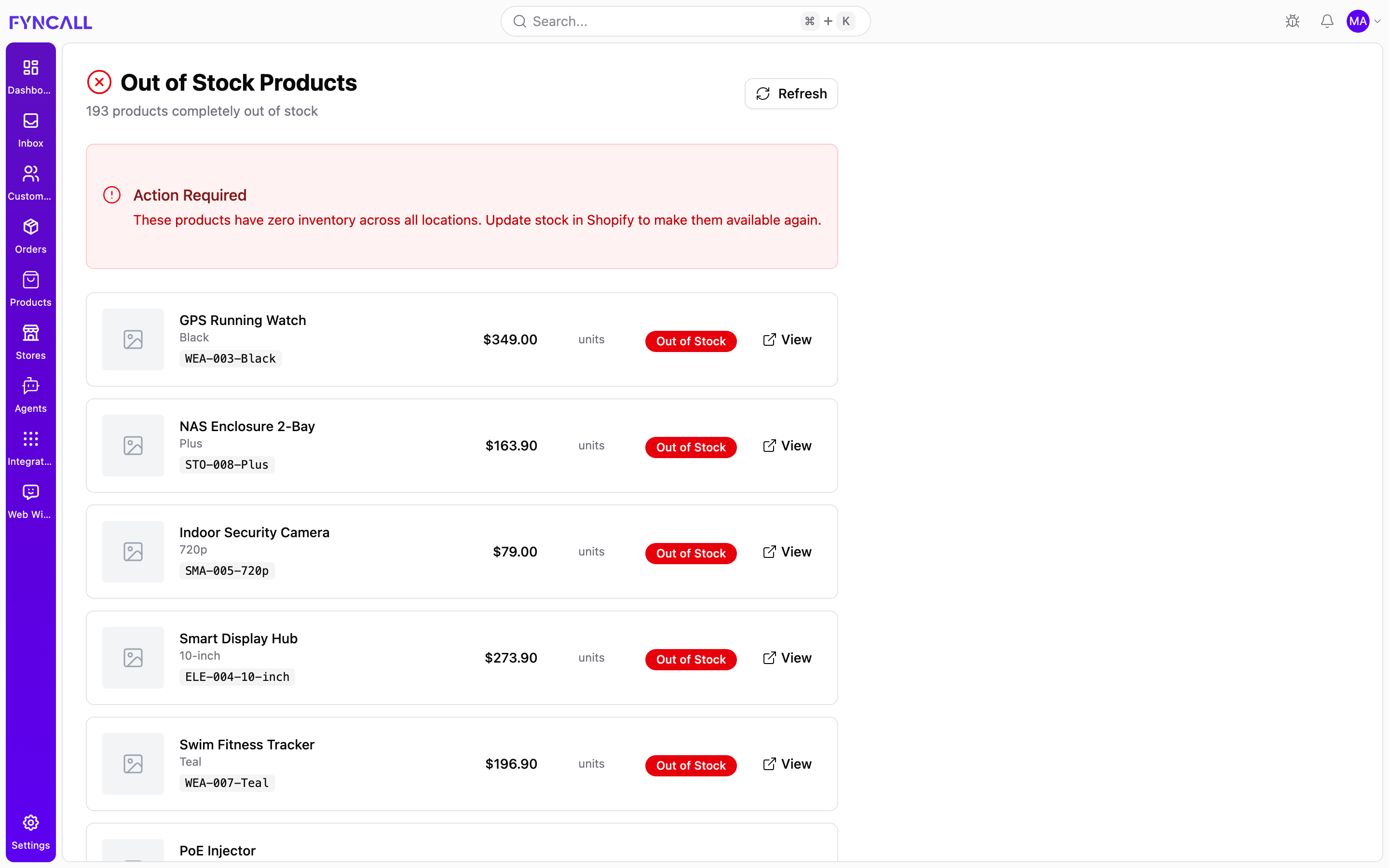
In the example above, 193 products are completely out of stock. A red Action Required banner ("These products have zero inventory across all locations. Update stock in Shopify to make them available again.") sits above the list, and each row carries a red Out of Stock badge.
To resolve out-of-stock products:
- Open the Out of Stock view from the dashboard card.
- Review the Action Required banner and the list of zero-inventory products.
- Select View on a product to open its detail page, or update its stock in Shopify if the product is Shopify-managed.
- Once stock is replenished, select Refresh — restocked products leave the list.
When nothing is out of stock, the page shows a "Great! No products are out of stock" message.
Reading an inventory row
Both the low-stock and out-of-stock lists use the same row format:
| Element | Description |
|---|---|
| Image | The product thumbnail. |
| Product | Product name, variant title, and SKU. |
| Price | The variant's price. |
| Quantity | The units in stock, colour-coded — red at zero, amber when low, green when healthy. |
| Locations | A button showing how many locations hold stock; click it for a per-location breakdown (available / on hand). |
| Status | An In Stock, Low Stock, or Out of Stock badge. |
| View | Opens the product's detail page. |
From the detail page you can adjust stock for individual variants — see Managing variants.
Pagination
The low-stock and out-of-stock lists show 20 items per page. When there's more than one page, use Previous and Next at the bottom; the current page and total item count are shown alongside.