Product Details
The product detail page shows everything about a single product — its images, pricing, category, description, variants, source, and sync status — and lets you edit it. Open it by clicking any product in the catalog.
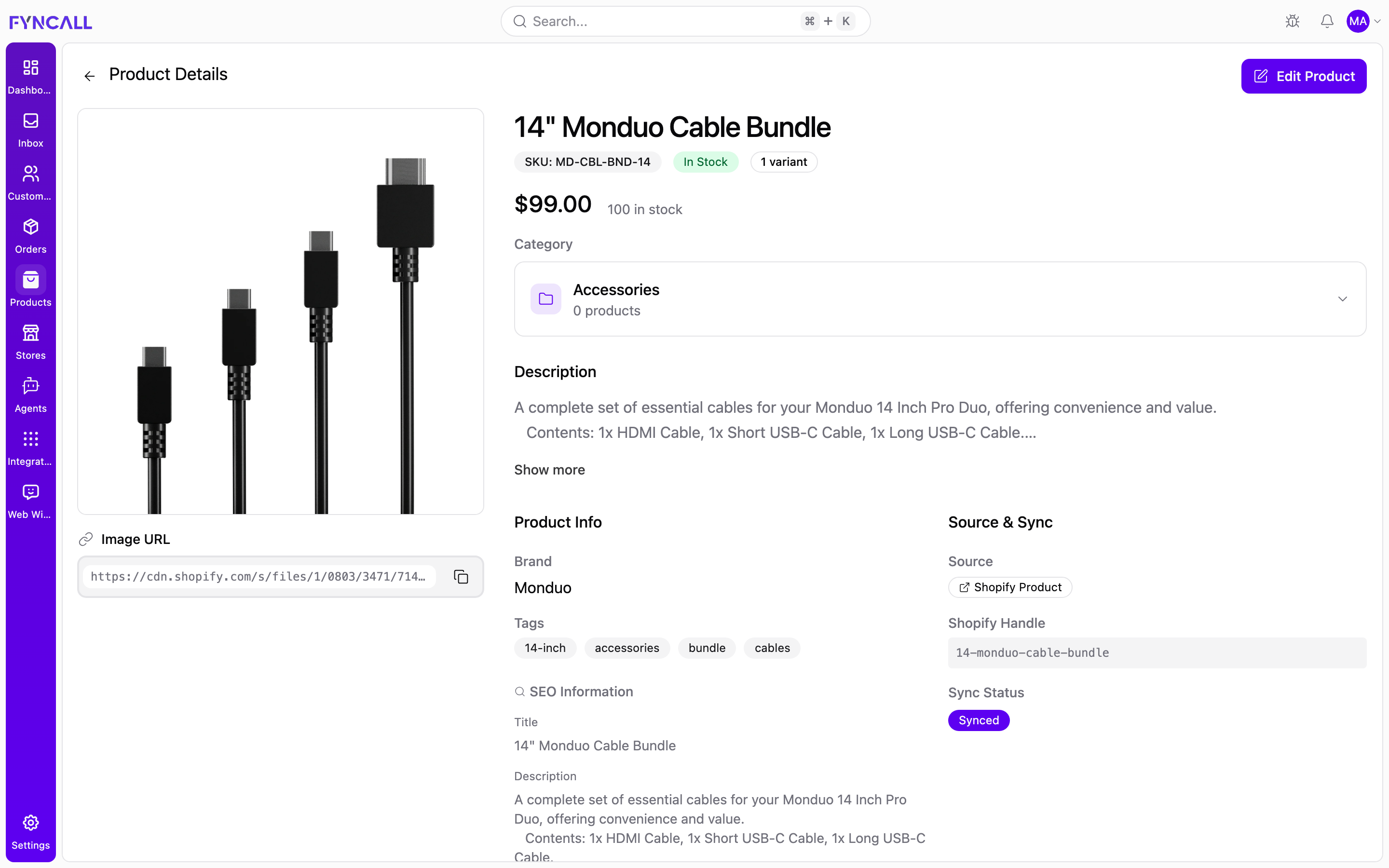
The example above shows a Shopify-synced product — 14" Monduo Cable Bundle
(MD-CBL-BND-14) — with its image gallery and copyable Image URL, an
In Stock badge and 1 variant, the $99.00 price, the Accessories
category panel, the description, Product Info (brand, tags, SEO), and a
Source & Sync block showing Shopify Product as the source with a
Synced status.
Use the back arrow in the top-left to return to wherever you came from. The Edit Product button in the top-right switches the page into edit mode.
Image gallery
The left column is the image gallery:
- The main image fills the panel. If the product has several images, hover to
reveal previous/next arrows, a position counter (e.g.
2/5), and a row of thumbnails you can click to jump to an image. - Below the image is the Image URL for the current image, with a copy button so you can grab the direct link.
If a product has no image, a placeholder is shown.
Product summary
The top of the right column summarises the product:
- Name as the page heading.
- A SKU badge.
- A stock badge — In Stock or Out of Stock — based on total inventory.
- A variants badge showing the number of variants, when there are any.
- Price — a single price, or a price range (lowest–highest) when variants have different prices. A struck-through compare-at price appears when the product is on sale.
- The in-stock count (total inventory across variants/locations).
Category
Below the summary is the Category panel. Click it to expand the full category profile, which can include:
- The category description and an AI Description (shown when the category has been enriched — see Enrich with AI).
- Keywords, target audience, and common use cases.
- Quick stats: average price, products in the category, in-stock count, and a trending score.
- Shopify sync status for the category, when applicable.
- An Edit category info button to update the category's details.
Badges on the category header mark it as Featured or AI Enriched where relevant. If the product has no category, the panel reads No category assigned.
Description and summary
- Description — the product's rich description (or plain-text description if no rich version exists). Long descriptions are truncated; use Show more / Show less to expand or collapse.
- Summary — a short summary, shown when one is set.
Product information
The Product Information block lists:
| Field | Description |
|---|---|
| Brand | The brand name (or —). |
| Tags | All tags applied to the product. |
| Barcode / UPC | The product barcode, when set. |
| SEO Information | The SEO title and description, when set. |
Source & Sync
The Source & Sync block tells you where the product came from and its sync state — most relevant for Shopify-connected stores:
| Field | Description |
|---|---|
| Source | How the product was added (for example Local, Shopify, Manual import, Bulk upload, or API). |
| Shopify handle | The product's Shopify handle, when synced from Shopify. |
| Sync Status | Synced, Pending, or Failed. |
| Last Synced | When the product last synced. |
For products synced from Shopify, the catalog data here mirrors Shopify. Make structural changes (like Shopify-managed fields) in Shopify so they aren't overwritten on the next sync.
Timeline
The Timeline block shows when the product was created and last updated, formatted in your locale.
Variants
The Variants section at the bottom lists every variant of the product in a table:
| Column | Description |
|---|---|
| Variant | The variant title and its option values (e.g. color, size). |
| SKU | The variant SKU (or —). |
| Price | The variant's price. |
| Compare at | The original price when on sale (or —). |
| Inventory | The variant's stock quantity. |
| Status | Active or Inactive. |
| Actions | Edit or delete the variant. |
A summary row underneath totals the number of variants, active variants, total inventory, and the overall price range.
Managing variants
With the Manage products permission you can add, edit, delete, and adjust the stock of individual variants.
To add a variant:
- Scroll to the Variants section.
- Select Add variant at the top of the section.
- Fill in the variant's title, option values, SKU, price, and inventory.
- Save the variant — it appears in the variants table.
To edit or delete a variant:
- Find the variant's row in the Variants table.
- In the Actions column, choose edit to change its details, or delete to remove it.
- Confirm if prompted.
To adjust a variant's inventory:
- In the Variants table, select the pencil next to the variant's Inventory value to open the Adjust Inventory dialog.
- Pick a location (locations come from your connected store).
- Enter a positive or negative quantity change, using the quick
-10 / -1 / +1 / +10buttons or by typing a value. - Enter a reason for the adjustment (required).
- Review the previewed New quantity — the dialog shows a (Warning: Negative stock) note if the change would push inventory below zero.
- Select Add Stock (for a positive change) or Remove Stock (for a negative change) to apply the adjustment.
Editing a product
To edit a product:
- Open the product's detail page.
- Select Edit Product in the top-right to switch into edit mode.
- Update any fields you need.
- Save to apply your changes and return to the read-only detail view, or select Cancel editing to discard.
Editing requires the Manage products permission.
Error and empty states
- If a product can't be loaded, the page shows an error with a Try again button.
- If the product doesn't exist, you'll see a not found message.
- If the feature needs a connected store, you'll be prompted to connect one.