Stores Overview
The Stores page is where you connect your e‑commerce store to Fyncall and keep its data in sync. Once a store is connected, Fyncall imports your products, collections, orders, and customers so your AI agents and team can answer questions, look up orders, and recommend products with full commerce context.
Shopify is currently the supported store platform. Any other platforms shown on the page appear as Coming Soon and cannot yet be connected.
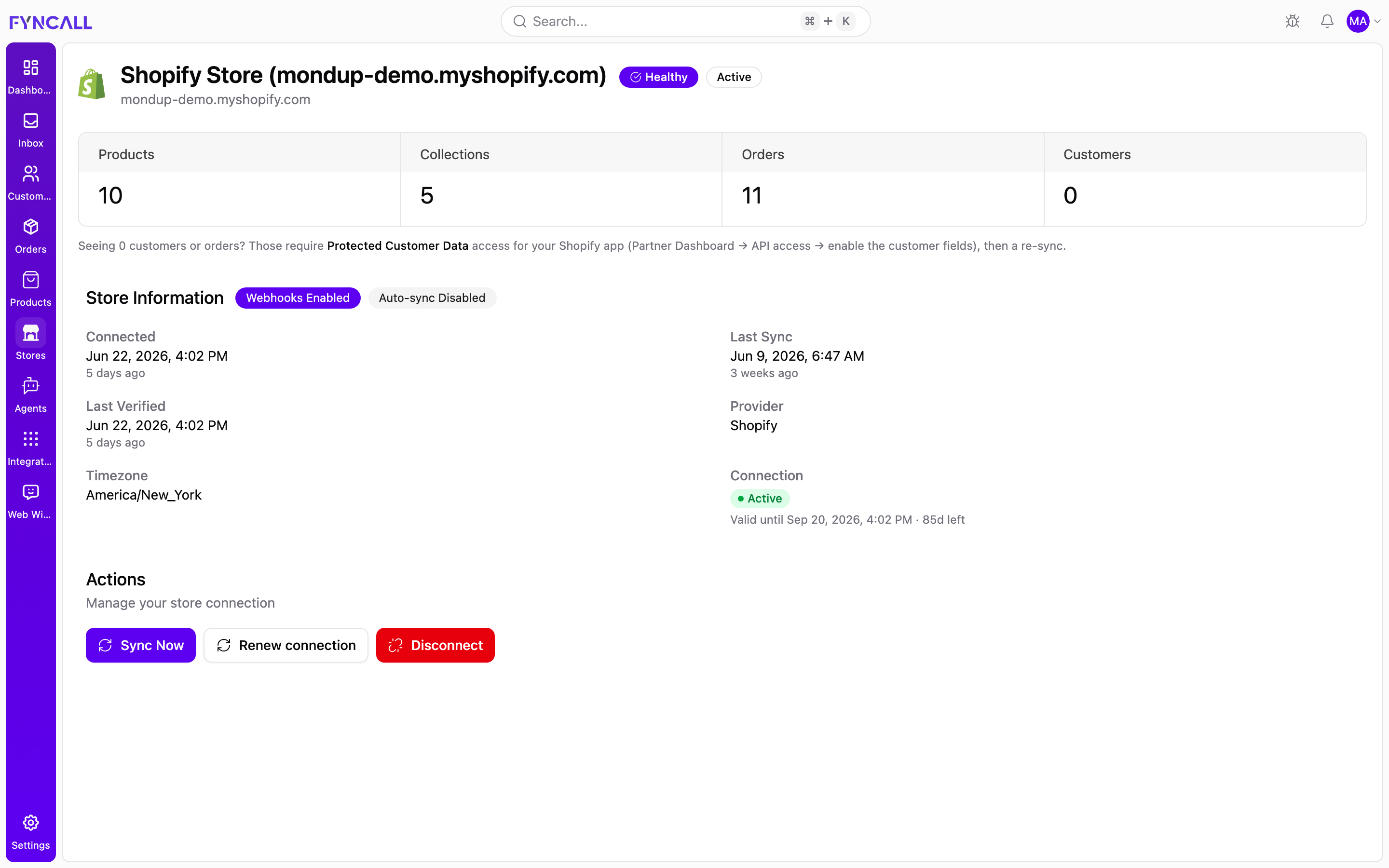
Where to find it
Open Stores from the left sidebar.
- If you have no store connected, you'll see a welcome screen with store cards to choose from.
- If you already have a store connected, you'll see the connected store's detail view (shown above) with its sync metrics, status, and management actions.
Connecting a Shopify store
You need an admin role to connect or manage a store.
- Go to Stores.
- On the welcome screen, find the Shopify store card and click Connect.
- On the Connect your Shopify store screen, enter your Shopify Store URL.
- Accepted formats include
mystore,mystore.myshopify.com, or your full admin URL. Fyncall normalizes whatever you enter tomystore.myshopify.com.
- Accepted formats include
- Review the connection summary on the right (platform, store URL, and whether Auto Sync and Webhooks are enabled).
- Click Connect Shopify. You'll be redirected to Shopify to authorize access.
- Approve the requested permissions in your Shopify admin.
- If a subscription approval is required, you'll be asked to approve it in Shopify before the connection completes (see below).
- After authorization, you're returned to Fyncall and your store begins syncing in the background.
When the connection succeeds you'll see a confirmation toast such as "Shopify connected successfully!" with a note that your store is now syncing data in the background.
For the full Shopify app installation and OAuth setup details, see the Shopify Integration guide. This Stores section focuses on day‑to‑day store management once the store is connected.
Subscription approval step
If your plan requires a paid Shopify subscription, you'll see a Subscription Approval Required screen after authorizing. To complete the connection:
- Click Approve in Shopify to open the subscription page in Shopify.
- Review and Approve the subscription in your Shopify admin.
- Return to Fyncall. The page checks for approval automatically (about every 5 seconds), or click I've approved it — Check Status.
You can also click Cancel Connection to abandon the pending connection.
The store card
Before a store is connected, each platform appears as a store card with:
| Element | Description |
|---|---|
| Logo & name | The platform logo and name (e.g., Shopify) |
| Description | A short summary of the integration |
| Action button | Connect for available platforms, Coming Soon for unavailable ones, or Connected once linked |
| Documentation link | An optional link to platform setup docs |
The connected store view
Once connected, the Stores page shows a detailed view of your store, broken into the sections below.
Header
The header shows your store name and domain (for example, Shopify Store (mondup-demo.myshopify.com)) along with two status badges:
| Badge | Meaning |
|---|---|
| Healthy | The connection is working normally. Shows Issues (in red) if there's a problem. |
| Active | The current connection status (e.g., active, connected, pending). |
Sync metrics
A row of metric tiles shows how much data has been imported:
| Metric | What it counts |
|---|---|
| Products | Products synced from your store |
| Collections | Product collections synced |
| Orders | Orders synced |
| Customers | Customers synced |
While a sync is running, the relevant tile shows a spinner and a live, increasing count.
Order and customer data require Protected Customer Data access for your Shopify app. Enable it in your Shopify Partner Dashboard → API access → customer fields, then run a re‑sync. Until then, those tiles may show 0.
Store Information
This section summarizes the connection. Badges at the top indicate whether Webhooks and Auto‑sync are enabled.
| Field | Description |
|---|---|
| Connected | When the store was first connected (with relative time, e.g., "15 hours ago") |
| Last Sync | When data was last synced |
| Last Verified | When the connection was last checked |
| Provider | The store platform (e.g., Shopify) |
| Timezone | Your company timezone used for displaying dates |
| Connection | Token status and expiry (see below) |
Connection status
The Connection field shows the health of your store's authorization token:
| Status | Meaning |
|---|---|
| Active (green) | The connection is valid and working |
| Expiring soon (amber) | The connection will expire soon and should be renewed |
| Needs reconnect (red) | The connection has expired or is invalid — syncing and AI store features are paused until you reconnect |
When an expiry date is available, Fyncall shows "Valid until <date> · <N>d left". If no expiry applies, it shows "Auto‑renews while active."
Actions
The Actions section lets you manage the connection with Sync Now, Renew connection, and Disconnect. These are covered in detail in Managing Stores.
What data syncs
When a Shopify store is connected, Fyncall keeps the following in sync:
| Data | Used for |
|---|---|
| Products (with variants, images, SKU, inventory, price) | AI product search, recommendations, stock checks |
| Collections | Browsing and grouping products |
| Orders (status, fulfillment, tracking, totals) | Order lookups and status updates |
| Customers (profiles, contact details, history) | Unified customer profiles and recognition |
Syncing happens automatically (when Auto‑sync is enabled) and via real‑time webhooks for new and updated records. You can also trigger a manual sync at any time.
See the Shopify Integration guide for the complete list of synced fields, AI capabilities, and webhook events.