Orders Overview
The Orders section is where you view, search, and manage every order placed through your store, along with carts your customers started but never completed. If your store is connected to Shopify, orders sync automatically and are clearly marked so you always know where they came from.
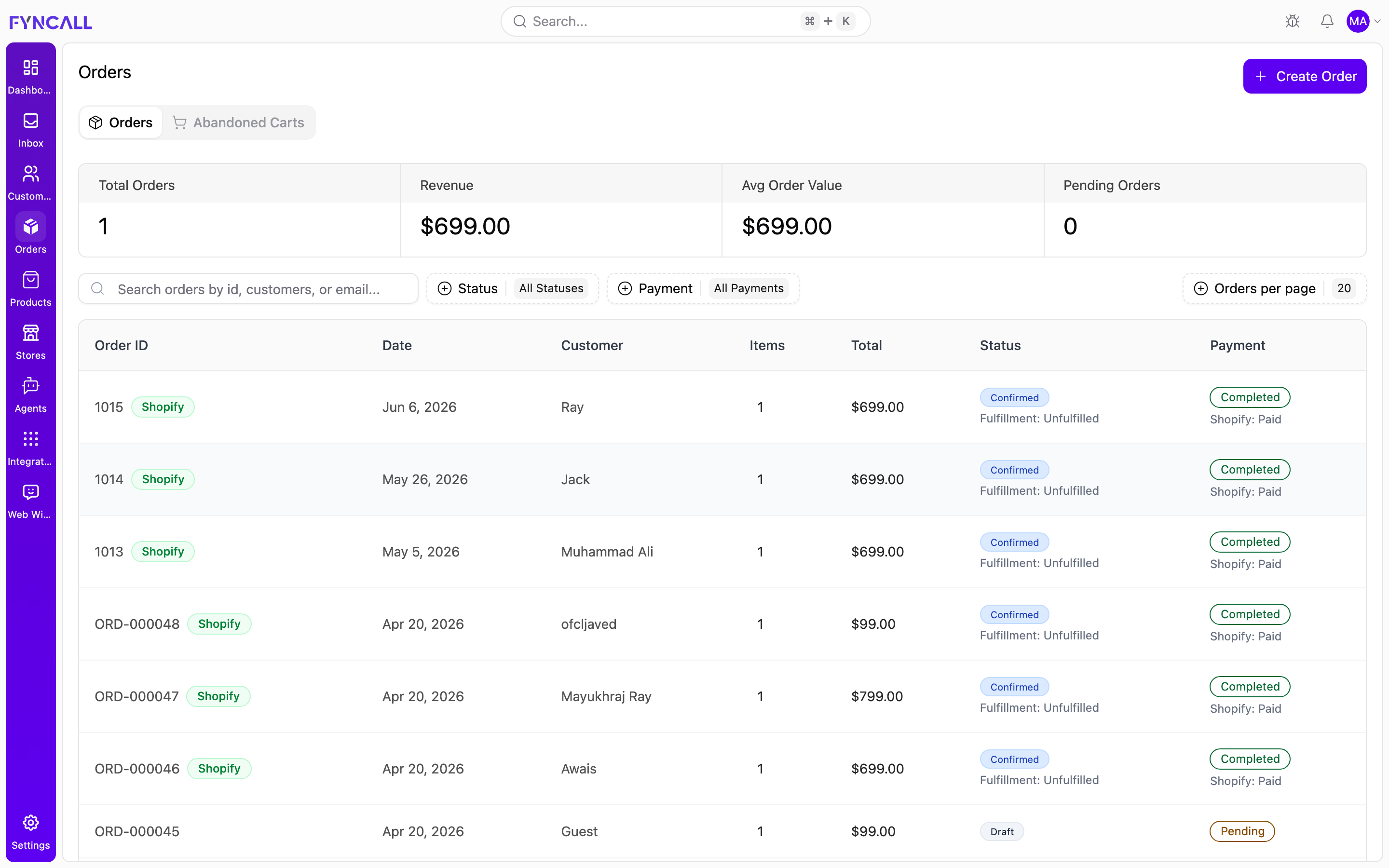
The screenshot above shows a store with live orders. Each row carries a green Shopify badge (orders synced from the connected store), the customer's name, the order total, and colored Status and Payment badges. Orders appear in the list below the stats cards as soon as they are placed or synced from Shopify.
The two tabs
The Orders page is split into two tabs at the top:
| Tab | What it shows |
|---|---|
| Orders | All confirmed and draft orders (manual or synced from Shopify). |
| Abandoned Carts | Carts customers started but did not check out, with recovery tools. |
This page covers the Orders tab. Abandoned cart recovery is documented in Managing Orders.
Stats cards
At the top of the Orders tab, four summary cards give you an at-a-glance view of your store's performance:
| Card | What it measures |
|---|---|
| Total Orders | The total number of orders. |
| Revenue | Total revenue across all orders, formatted as currency. |
| Avg Order Value | Average value per order (revenue ÷ total orders). |
| Pending Orders | Count of orders still in a draft / pending state. |
On a new account, every card reads 0 or $0.00 until your first orders arrive.
Search
Use the search box to quickly find an order. It searches across:
- Order ID (the order number)
- Customer name
- Email address
The placeholder reads "Search orders by id, customers, or email...".
Filters
Two filter dropdowns sit next to the search box. They can be combined with search to narrow the list.
Status filter
The Status filter (default All Statuses) lets you show only orders in a given fulfillment stage:
| Filter option |
|---|
| All Statuses |
| Draft |
| Pending |
| Confirmed |
| Processing |
| Shipped |
| Delivered |
| Cancelled |
| Refunded |
| Returned |
Payment filter
The Payment filter (default All Payments) lets you show only orders with a given payment state:
| Filter option |
|---|
| All Payments |
| Pending |
| Processing |
| Completed |
| Failed |
| Cancelled |
For a full reference of what each status means, see the status reference tables.
When any filter or search is active, a Reset button appears. Click it to clear all filters and return to the full list.
Orders per page
The Orders per page control sets how many orders are listed at once. You can choose 10, 20 (default), 50, or 100. Use the paginator at the bottom of the list to move between pages.
The order list
Each order in the list shows the following columns (on desktop):
| Column | Description |
|---|---|
| Order ID | The order number (for example #12345). |
| Date | When the order was placed. |
| Customer | The customer's name. |
| Items | Number of items in the order. |
| Total | Order total, formatted as currency. |
| Status | A colored badge showing the order's fulfillment status. |
| Payment | A colored badge showing the payment status. |
Additional indicators may appear on a row:
- Shopify badge — a green Shopify badge marks orders that were synced from your connected Shopify store.
- Fulfillment — for Shopify orders, a line such as Fulfillment: Unfulfilled.
- Shopify financial status — for Shopify orders, the original Shopify payment state.
- Refund needed — an orange warning shown when an order may require a refund (for example, it was cancelled after payment was captured).
On mobile, the same information is shown as stacked cards instead of a table.
Click any order to open its detail page.
Create Order
The Create Order button in the top-right corner opens a form for building an order manually — useful for phone orders, in-person sales, or any order placed outside your normal checkout. See Creating an order for the full walkthrough.
When no orders match
If your current search or filters exclude every order, the list shows:
No orders found No orders match your current filters. Try adjusting your search criteria or clearing the filters.
The same message appears on a brand-new account before your first orders arrive. If you expect to see orders here, click Reset to clear filters, or check that your search term is correct.
If your store is connected to Shopify, orders flow in automatically. A newly connected store may take a short time to complete its first sync before orders appear here.