Team Members
Invite people to your Fyncall workspace, assign their roles, control which channels they can work in, and manage pending invitations.
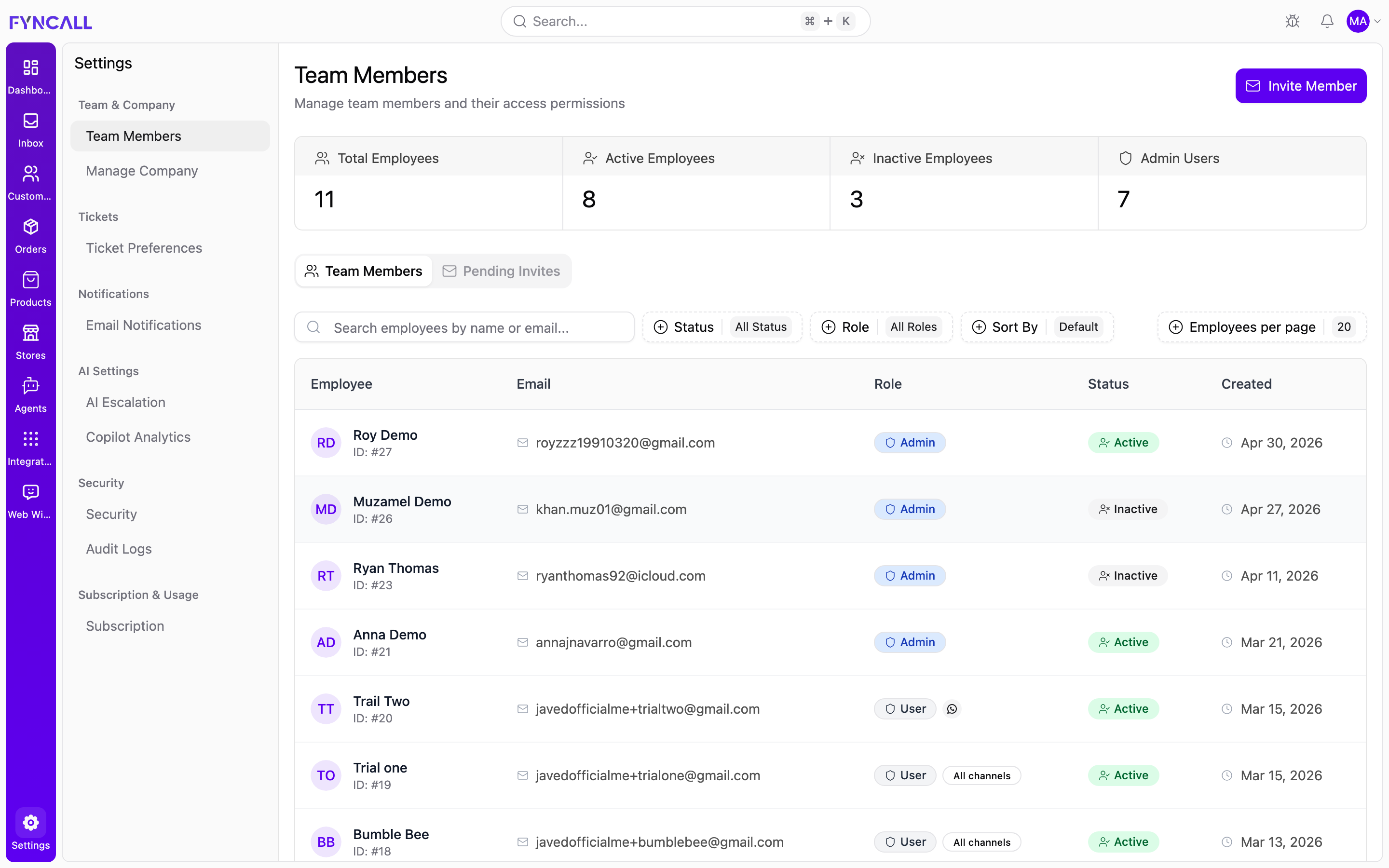
The Team Members page is available to admins and the workspace owner. Action buttons (invite, edit, resend, cancel, deactivate, delete) are disabled for non-admins.
Overview
Open Settings → Team Members (/settings/team). The top of the page shows four summary cards:
| Card | What it counts |
|---|---|
| Total Employees | Everyone in the workspace |
| Active Employees | Members who can currently sign in |
| Inactive Employees | Deactivated members |
| Admin Users | Members with the Admin role |
Below the cards are two tabs:
- Team Members — the list of existing members
- Pending Invites — invitations that have been sent but not yet accepted
The team list
The Team Members tab lists everyone in the workspace. On desktop it shows a table; on mobile each member is a card.
| Column | Shows |
|---|---|
| Employee | Avatar (initials), name, and the member's ID |
| Email address | |
| Role | Role badge, an Owner badge (crown) if applicable, and channel-access badges for non-admins |
| Status | Pending, Active, or Inactive |
| Created | Date the member was added |
Click any row to open the member's detail page.
Filters
Use the filter bar above the list to narrow it down:
- Search — by name or email
- Status — All, Active, Inactive
- Role — All, Admin, User
- Sort By — Default, Ascending, Descending
- Per Page — 10, 20, 50, or 100 rows
A Reset button appears whenever a filter is applied.
Roles and permissions
Fyncall has two assignable roles plus a special Owner designation.
| Role | Access |
|---|---|
| Admin | Full access to every feature except billing (billing is reserved for the Owner). Can manage the team, settings, and integrations. |
| User | Limited, support-focused access (see the table below). |
The Owner is the person who owns the workspace. Owner is a flag, not a selectable role — it is shown with an amber crown badge. The Owner cannot be deactivated, deleted, or have their role changed.
A super_admin role exists for Fyncall platform staff. It cannot be assigned from this page.
What a User can access
When you assign the User role, the member gets this fixed feature access (shown read-only when editing):
| Feature | Access |
|---|---|
| Dashboard | View |
| Inbox | View + manage |
| Products | View only |
| Orders | View + manage |
| Customers | View + manage |
| Agents | No access |
| Integrations | No access |
| Stores | No access |
| Widget | No access |
| Team | No access |
Admins see Admin — Full Access instead of this table.
Inviting a team member
-
Click Invite Member (top right). This opens the invite screen (
/team/invite). -
Fill in the form:
Field Required Notes First Name Yes Last Name Yes Email Address Yes Must be a valid email Role Yes Admin or User Restrict channel access No Toggle, shown only for the User role -
(Optional) Turn on Restrict channel access to limit which channels the member can work in. Toggle any of:
- Web Chat
If you leave this off, the member can access all channels. Choosing the Admin role clears and disables channel restrictions.
-
Click Send Invitation. The invitee receives an email with a link to set up their account.
Channel access only applies to the User role. Admins always have access to every channel.
Pending invites
The Pending Invites tab lists invitations that have not been accepted yet.
| Column | Shows |
|---|---|
| Member | Name (or email if no name yet) |
| Email address | |
| Role | Assigned role |
| Status | Pending or Expired |
| Sent | When it was sent (plus "resent X times" if applicable) |
| Expires | Time remaining, or the expiry date in red if expired |
| Actions | Resend and Cancel |
Invitation statuses
| Status | Meaning |
|---|---|
| Pending | Sent, awaiting acceptance |
| Accepted | Account created — the member now appears as Active/Inactive |
| Expired | The invite expired; you can resend it |
| Cancelled | An admin cancelled the invite |
Resend or cancel
- Resend (refresh icon) — sends the invitation email again and increments the resent count.
- Cancel (X icon) — shows a confirmation dialog, then deletes the invitation.
Managing a member
Click a member in the list to open their detail page (/team/:id). You'll see contact and account information plus an Actions panel on the right. If the member hasn't accepted their invite yet, a Pending Invitation banner appears and some actions are restricted.
Edit details
Click Edit to open the edit panel. You can change:
- First name, last name
- Email address, phone number
- Role (Admin or User)
- Timezone
- Channel Access toggles (for the User role only)
- Team member is active toggle
Save Changes is enabled only when something has changed.
Activate / Deactivate
- Deactivate temporarily blocks an active member from signing in.
- Activate restores access to an inactive member.
Delete a member
Click Delete Employee to remove a member permanently (confirmation required).
- The Owner cannot be deactivated, deleted, or have their role changed.
- You cannot change your own role or status, or delete your own account, from this page.
- A member's status and role cannot be changed until they accept their invitation.