Email Notifications
Control the emails Fyncall sends for ticket and conversation events, customize the templates and branding, and review a delivery log.
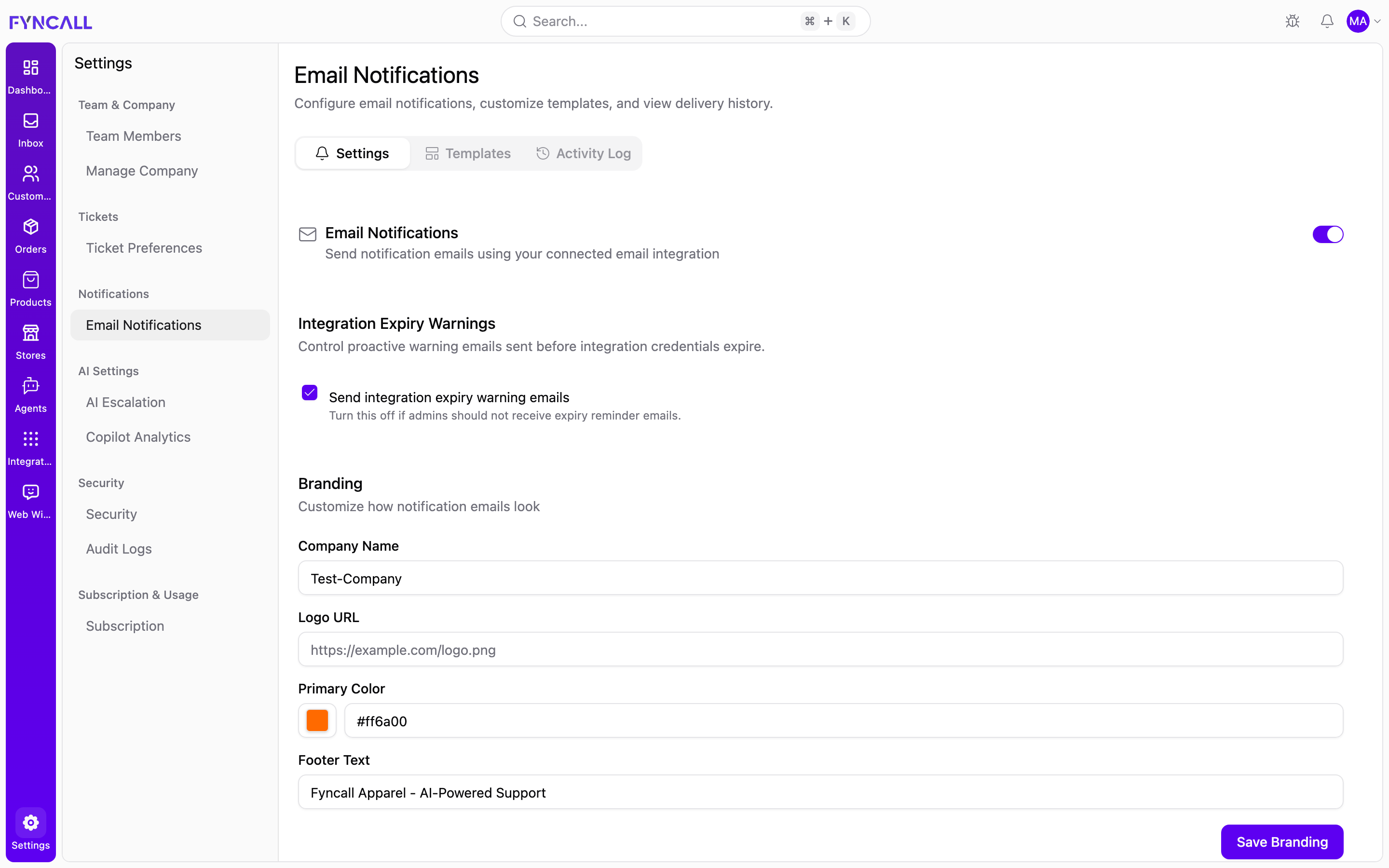
Email Notifications require admin access.
Open Settings → Email Notifications (/settings/email-notifications). The page has three tabs: Settings, Templates, and Activity Log.
Notifications are sent through your connected email integration. If none is connected, the master toggle stays off and prompts you to Open Email Integrations. Connect an email provider (SMTP, Gmail, or Outlook) under Integrations first.
Settings tab
Email Notifications (master toggle)
The Email Notifications switch turns notification emails on or off for the whole workspace. While it's off, all events below are dimmed and can't be edited.
Integration Expiry Warnings
A checkbox — Send integration expiry warning emails — controls whether admins receive proactive reminders before integration credentials expire. Turn it off if admins shouldn't get expiry reminders.
Branding
Customize how notification emails look:
| Field | Notes |
|---|---|
| Company Name | Name shown in emails |
| Logo URL | Link to your logo image (e.g. https://example.com/logo.png) |
| Primary Color | Accent color (color picker or hex value such as #FF6B00) |
| Footer Text | Text shown in the email footer |
Click Save Branding to apply.
Notification events
Events are grouped by category. For each event you can:
- Enable / disable it with a toggle.
- Choose who receives it from the available recipients:
| Recipient | Meaning |
|---|---|
| Customer | The customer on the ticket/conversation |
| Assigned Agent | The agent the ticket is assigned to |
| Team Lead | The team lead |
| Mentioned Users | Users mentioned in the thread |
| All Agents | The whole team inbox |
The recipient options shown depend on the event. Each event group has its own Save button that appears when you make changes. When the master toggle is off, events are disabled with an "Enable notifications to activate" hint.
Templates tab
Each notification event has an email template. Templates display as cards showing the event name, the current subject line, and a badge marking it as Custom or System Default.
For each template you can:
- Preview — see the rendered subject and email in a preview window.
- Edit — open the template editor.
- Revert (custom templates only) — delete your custom version and return to the system default after confirming. This can't be undone.
Editing a template
The editor lets you change:
| Field | Notes |
|---|---|
| Subject Line | The email subject |
| HTML Content | The email body, edited in an HTML editor with syntax highlighting |
| Text Content | Optional plain-text fallback |
Available Variables are shown as clickable badges — click one to insert it at the cursor. Variables use the {{ variable_name }} syntax and work in the subject, HTML, and text fields.
Save with Save Template, discard with Cancel, or use Revert to Default to drop a custom template.
Activity Log tab
Review what notifications were sent and troubleshoot failures.
Stats
Four cards summarize delivery:
| Card | Meaning |
|---|---|
| Total | All notification attempts |
| Sent | Successfully delivered |
| Failed | Delivery failed |
| Suppressed | Skipped (e.g. deduplicated) |
Filters
Narrow the log by:
- Recipient Email (search)
- Event Type
- Status — All, Sent, Pending, Failed (Retrying), Failed, Suppressed
- From date / To date
A Reset button clears active filters.
Log entries
Each row shows the Event, Recipient, Status, and Sent At time. Statuses are:
| Status | Meaning |
|---|---|
| Pending | Queued, not yet sent |
| Sent | Delivered |
| Failed (Retrying) | Failed but will be retried |
| Failed | Failed permanently |
| Suppressed | Skipped |
Click a row to expand it for details — provider, recipient type, related entity, attempt count, timestamps, next retry, and the last error message. Failed notifications show a Retry button. Use the Previous / Next controls to page through the log.
If emails aren't arriving, check the Activity Log for failed entries and their error messages, confirm the master toggle is on, and verify your email integration is connected and not expired.