Manage Company
Keep your company profile up to date and view details from your connected Shopify store.
Editing company settings requires admin access. Without it you'll see "You need admin access to manage company settings."
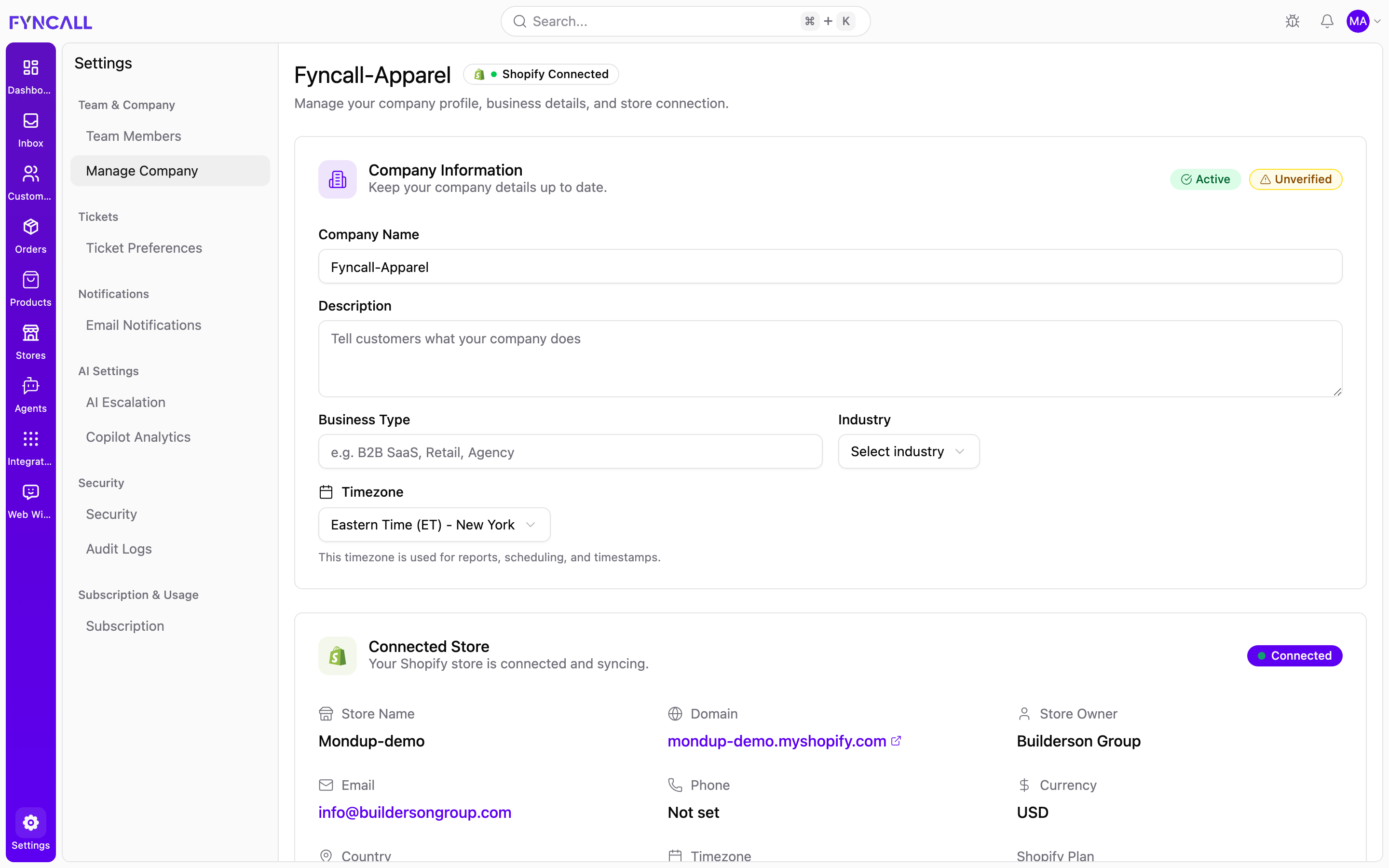
Open Settings → Manage Company (/settings/company). The page has two sections: Company Information (editable) and Connected Store (read-only Shopify details).
Company status
At the top of the Company Information card, two read-only badges show your account state:
| Badge | States |
|---|---|
| Company status | Active / Inactive |
| Verification | Verified / Unverified |
These are set by the system and cannot be edited here.
Company information
Edit your company profile using the following fields:
| Field | Type | Notes |
|---|---|---|
| Company Name | Text | Your company's display name |
| Description | Text area | A short description of what your company does |
| Business Type | Text | Free text, e.g. "B2B SaaS, Retail, Agency" |
| Industry | Dropdown | Choose from the list below |
| Timezone | Dropdown | Used for reports, scheduling, and timestamps |
Industry options
Technology · Healthcare · Finance & Banking · Retail & E-commerce · Manufacturing · Education · Real Estate · Consulting · Hospitality & Tourism · Transportation & Logistics · Media & Entertainment · Agriculture · Construction · Energy & Utilities · Government · Other
Timezone
The selected timezone is used across the platform for reports, scheduling, and timestamps. The list covers UTC plus major cities across the Americas, Europe, Asia, Oceania, and Africa. The default is UTC.
Saving changes
Cancel and Save Changes buttons appear only after you edit a field.
- Save Changes stores your updates and shows "Company settings updated successfully."
- Cancel discards your edits and reverts to the last saved values.
Connected Store
The Connected Store card shows whether a Shopify store is linked to your workspace.
No store connected
If no store is connected, you'll see an empty state with a Connect Shopify Store button that takes you to the Stores page.
Store connected
When a Shopify store is connected, a green Connected badge appears and the card displays read-only details pulled from Shopify:
| Detail | Source |
|---|---|
| Store Name | Shopify store name |
| Domain | myshopify.com domain (links to the storefront) |
| Store Owner | Shopify account owner |
| Store contact email (click to email) | |
| Phone | Store phone (click to call) |
| Currency | Store currency |
| Country | Store country |
| Timezone | Store timezone |
| Shopify Plan | Current Shopify plan |
A Business Address block shows the store's address (or "No business address available" if none is set).
Three buttons let you jump to Shopify:
- Manage Store — opens the Fyncall Stores page
- Open Shopify Admin — opens your Shopify admin in a new tab
- Edit Store Settings — opens Shopify's general settings in a new tab
Store details are read-only here and managed in Shopify. To change them, use Open Shopify Admin or Edit Store Settings. To connect or disconnect stores, go to Stores.