Security
The Security page protects your individual account: how you sign in, two-factor authentication, and the devices and sessions connected to you. It lives under Settings → Security → Security (/settings/security).
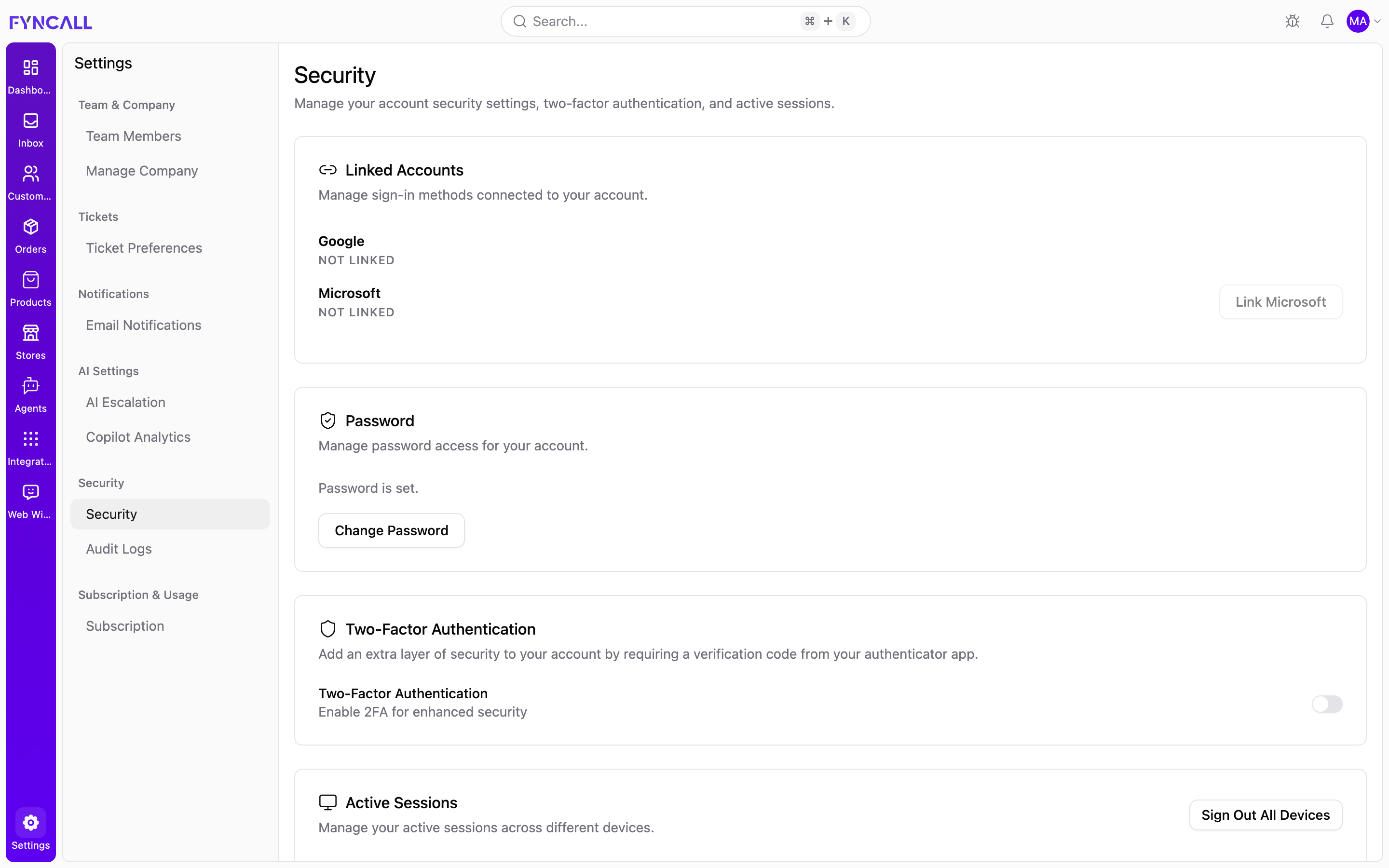
The page description reads: "Manage your account security settings, two-factor authentication, and active sessions."
Unlike most Settings pages, Security applies to your own account, not the whole workspace. Every team member sees and manages their own Security page.
Linked Accounts
"Manage sign-in methods connected to your account." Shows the third-party sign-in methods linked to you:
- Google — when linked, shows the connected email address and the date it was linked ("Linked {date}"). Otherwise shows Not linked.
- Microsoft — shows Connected or Not linked, with a Link Microsoft button.
Password
"Manage password access for your account." The status line tells you whether a password exists:
- Password is set. — a Change Password button takes you to the password-reset flow for your email.
- No password set. Use Google sign-in for now. — a Set Password button emails you a setup link ("Password setup email sent. Check your inbox."). This is common if you originally signed up with Google.
Two-Factor Authentication
"Add an extra layer of security to your account by requiring a verification code from your authenticator app."
A single Two-Factor Authentication toggle turns 2FA on or off:
- When off: "Enable 2FA for enhanced security."
- When on: "Your account is protected with 2FA."
Setting up 2FA
Turning the toggle on opens a three-step setup dialog:
- Set Up Two-Factor Authentication — "Scan the QR code with your authenticator app to get started." Select Generate QR Code.
- Verify Your Authenticator — scan the QR code with an authenticator app (Google Authenticator, Authy, 1Password, etc.). Can't scan? A manual secret key is shown with a copy button. Enter the 6-digit code from your app and select Verify & Enable.
- Save Your Backup Codes — "Save these codes in a safe place. Each code can only be used once." Use Download Backup Codes to save them, then confirm with I've Saved My Codes.
Backup codes let you get into your account if you lose your authenticator device. Each code works only once. Store them somewhere safe and private.
Backup Codes
Once 2FA is on, a Backup Codes row shows how many codes remain (e.g. "8 codes remaining") with a Manage Codes button. The Backup Codes dialog shows your remaining count and when they were generated, and lets you:
- Regenerate Backup Codes — generating a new set invalidates all existing codes. You must enter your password to confirm, then Download the new codes. ( "Your previous codes are now invalid. Save these new codes." )
Disabling 2FA
Turning the toggle off opens the Disable Two-Factor Authentication dialog: "Enter your password to confirm disabling two-factor authentication." Enter your password and select Disable 2FA.
Active Sessions
"Manage your active sessions across different devices." Lists every device where you're currently signed in. Each entry shows:
- Device name (or browser and OS, e.g. "Chrome on macOS").
- A Current badge on the session you're using right now.
- IP address and location (when available).
- Last active date and time.
You can revoke any other session with its ✕ button. When more than one session exists, a Sign Out All Devices button appears in the top-right to end every session at once. Empty state: "No active sessions found."
If you don't recognize a session, revoke it immediately and change your password.
Trusted Devices
This section appears only when 2FA is enabled. "Devices that can skip two-factor authentication for 30 days." When you choose to trust a device during 2FA login, it's listed here. Each entry shows the device name (or browser and OS), a Current badge where applicable, IP address and location, and Trusted since date. Revoke any device with its ✕ button.
Empty state: "No trusted devices. Trust a device during 2FA login to skip verification for 30 days."
For workspace-wide security visibility — who did what and when — see Audit Logs.