Subscription
The Subscription page (titled Billing in the workspace) is where you review your plan, track AI usage, top up balances, and find your invoices and purchase history. It lives under Settings → Subscription & Usage → Subscription (/settings/billing).
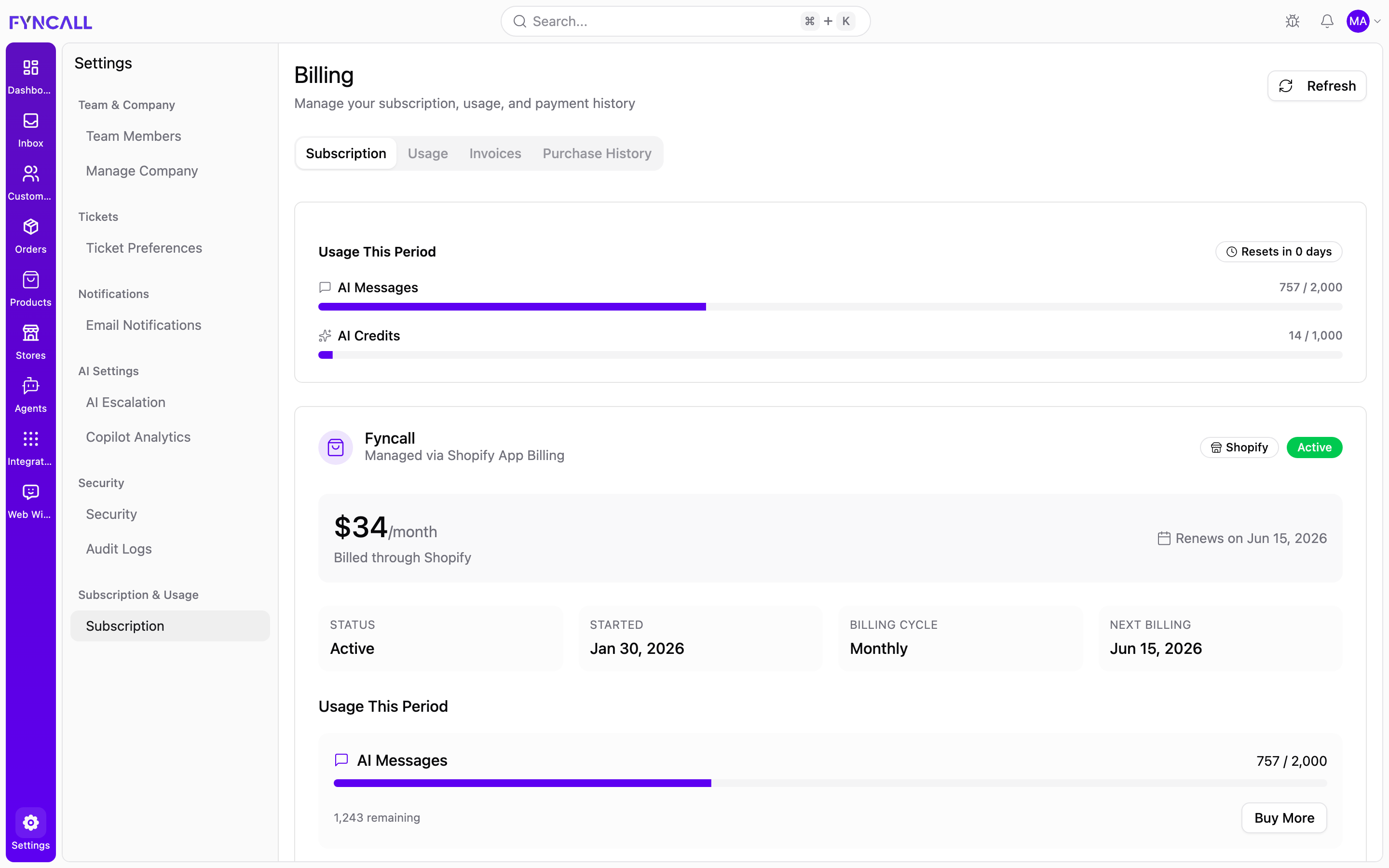
The page header reads Billing with the subtitle "Manage your subscription, usage, and payment history." A Refresh button in the top-right re-fetches the latest billing data.
Anyone on the team can view plan and usage details, but billing actions (subscribe, cancel, buy more, manage in Shopify) are restricted to the account owner. Non-owners see "Billing actions are owner-only. You can view usage and subscription details." and disabled buttons labeled Owner only.
Tabs
When you have an active subscription, the page is split into tabs:
| Tab | What it covers |
|---|---|
| Subscription | Your current plan, usage this period, included features, and add-ons. |
| Usage | Detailed AI Messages and AI Credits usage with explanations. |
| Invoices | Subscription billing history and one-time purchases (or payment receipts). |
| Purchase History | One-time add-on purchases (shown when add-on purchases are available). |
Subscription tab
Usage This Period
At the top, a summary card shows your usage for the current billing cycle, with a Resets in N days badge:
- AI Messages — used vs. limit (e.g.
0 / 500), or Unlimited. - AI Credits — used vs. limit (e.g.
0 / 1,000), or Unlimited.
If you've bought add-ons, a line shows "+N purchased available." Bars are color-coded — green when healthy, amber at 80%+, red at 95%+.
Current plan card
This card shows your plan at a glance. For a Shopify-billed plan you'll see, for example, Fyncall Pro with "Managed via Shopify App Billing," a Shopify badge, and a status badge such as Active. Below it:
- Price and interval — for example $34 / month, with "Billed through Shopify."
- Renewal — for example "Renews on Aug 9, 2026."
A summary grid lists:
| Field | Example |
|---|---|
| Status | Active |
| Started | Jun 26, 2026 |
| Billing Cycle | Monthly |
| Next Billing (or Trial Ends during a trial) | Aug 9, 2026 |
If you're on a trial, a purple banner shows how many days remain ("N days left in your trial") and the trial end date, and your price reads "Free during trial period."
On a Shopify development store you may see "This is a test subscription (development store). No charges will be made."
Usage This Period (detailed)
Within the plan card, two cards break out usage:
- AI Messages — used / limit, N remaining, with a Buy More button (owner only).
- AI Credits — used / limit, N remaining, with a Buy More button (owner only).
An explanatory line notes: "AI Messages are used for customer chat responses. AI Credits are used for workflows, analysis, and copilot features."
What's Included
A checklist of everything your plan includes — for example: 500 AI messages + 1,000 AI credits/month, unlimited human replies, unlimited team members, WhatsApp / Instagram / Email integrations, web chat widget, deep Shopify integration, custom AI workflows, knowledge base, AI copilot, ticketing with SLA & escalations, AI guardrails, analytics & reports, 2FA security, and priority support.
Plan actions
The buttons depend on how you're billed:
- Shopify-billed, free plan — Upgrade to Pro.
- Shopify-billed, paid plan — Manage in Shopify (opens your Shopify admin) and Cancel Subscription. A hint notes "Subscription changes are managed through your Shopify admin."
- Cancelling — a confirmation dialog ("Cancel your subscription?") explains you keep access until the end of the current billing period (or that a trial ends immediately). Choose Keep Subscription or Yes, Cancel Subscription.
Need More Credits? (add-ons)
When add-on purchases are available, a Need More Credits? card lets you buy one-time top-ups — "Purchase additional AI Messages or Credits as one-time add-ons."
- AI Messages (for customer chat responses): 100 for $5, 500 for $20, 1,000 for $35 — via Buy AI Messages.
- AI Credits (for workflows & copilot): 100 for $10, 500 for $40, 1,000 for $70 — via Buy AI Credits.
Selecting one opens a dialog where you pick a pack and confirm with Purchase via Shopify. "One-time purchase via Shopify. Credits are added immediately after approval."
Need Help?
A footer card points you to support: "If you have any questions about your subscription or billing, please contact our support team" at support@fyncall.com.
Usage tab
A focused view of consumption for the current cycle, showing the billing cycle dates and a Resets in N days indicator, plus two cards:
- AI Messages — "Customer conversations handled by AI." Shows used / limit, remaining, a usage bar, and percent used. Owner: Buy Messages.
- AI Credits — "Copilot, suggestions, and AI tools." Same layout. Owner: Buy Credits.
A What counts as usage? explainer clarifies:
- AI Messages — "Each customer message that AI responds to counts as 1 message, regardless of channel (WhatsApp, Instagram, Email, Web)."
- AI Credits — "Copilot actions (summarize, draft reply, etc.), AI suggestions, and workflow creation each use 1 credit."
Invoices tab
- Shopify-billed — a Billing History view with a Subscription summary (plan, status, activated, next billing) and a View Subscription in Shopify button, plus a One-Time Purchases table (type, quantity, amount, date, status, and a Complete action for any pending purchase). Empty state: "No one-time purchases yet."
- Direct-billed — a Payment History view listing invoices (number, date, amount, status) with View and Download PDF actions. Empty state: "No invoices yet."
Purchase History tab
Lists your one-time add-on purchases — "Your one-time purchases for additional AI Messages and Credits" — with type, quantity, price, date, and status. From here (owner only) you can also start a new Buy AI Messages or Buy AI Credits purchase. Empty state: "No purchases yet."
Getting started states
If you don't have a subscription yet, the page guides you with one of these:
- Connect Your Shopify Store — install the Fyncall app from the Shopify App Store (Connect Shopify Store).
- No Active Subscription — subscribe through Shopify (Subscribe via Shopify / Subscribe Now), or Already subscribed? Sync from Shopify.
- Complete Your Subscription — when a subscription is pending approval in Shopify, use Approve in Shopify, then return and refresh.
To see what's consuming your AI Credits, check Copilot Analytics. To control how much AI replies (and reduce message usage), see AI Escalation.