AI Escalation
The AI Escalation page controls how your AI agents reply to customers and when they should hand a conversation over to a human. It lives under Settings → AI Settings → AI Escalation (/settings/ai-escalation).
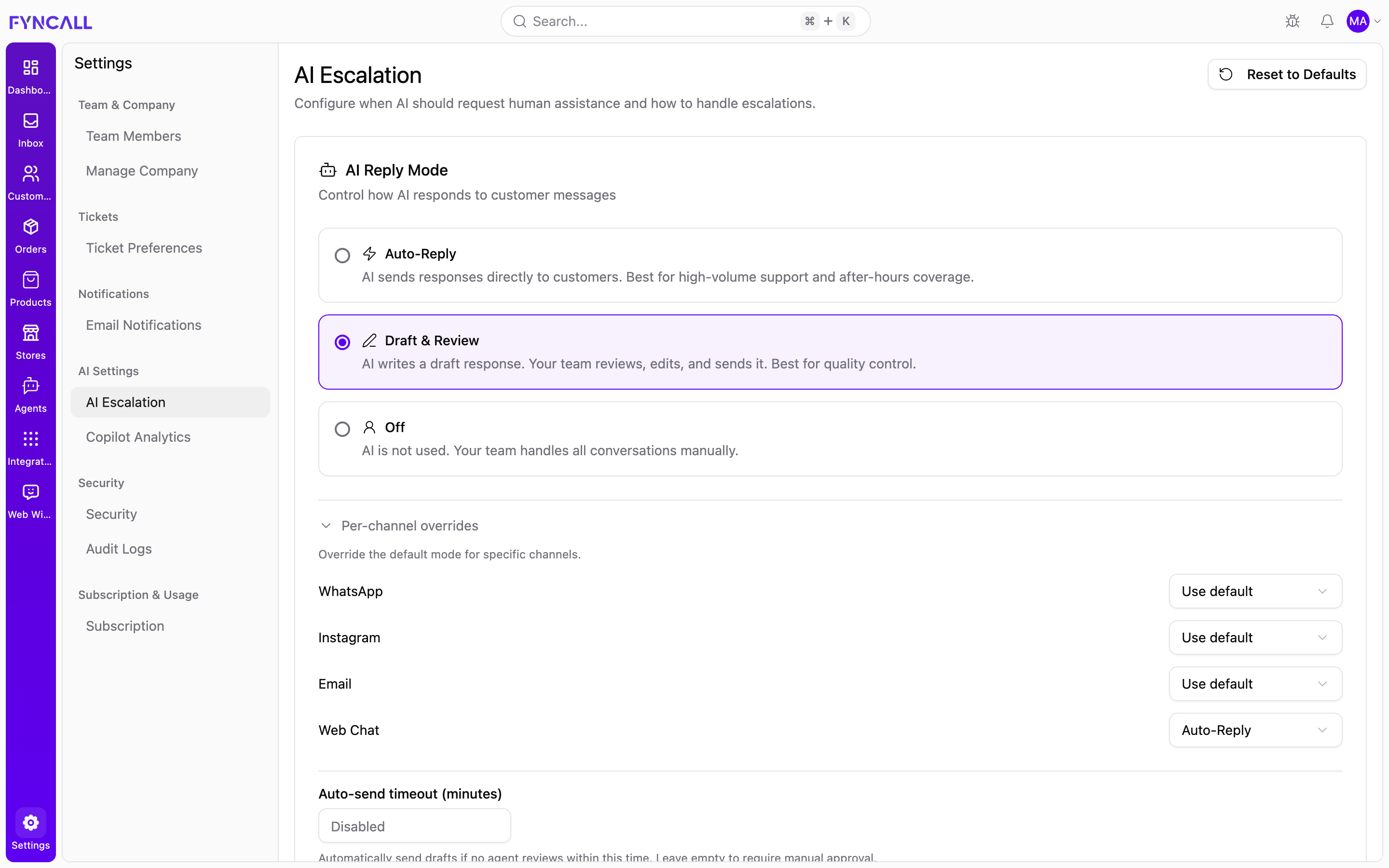
The page description sums it up: "Configure when AI should request human assistance and how to handle escalations."
These settings shape how AI behaves for every conversation in your workspace, so they are intended for owners and admins.
Reset to Defaults
A Reset to Defaults button sits in the top-right corner. Selecting it opens a confirmation dialog ("Reset to Defaults?") warning that "This will reset all AI escalation settings to their default values. This action cannot be undone." Choose Reset to restore every setting on this page, or Cancel to keep your current configuration.
Each section below has its own Save button that appears once you make a change. Save one section at a time.
AI Reply Mode
"Control how AI responds to customer messages." Pick one of three modes:
| Mode | What it does | Best for |
|---|---|---|
| Auto-Reply | AI sends responses directly to customers. | High-volume support and after-hours coverage. |
| Draft & Review | AI writes a draft response; your team reviews, edits, and sends it. | Quality control. |
| Off | AI is not used. Your team handles all conversations manually. | Fully manual handling. |
Per-channel overrides
Expand Per-channel overrides to set a different reply mode for individual channels — "Override the default mode for specific channels." Each channel has a dropdown offering Use default, Auto-Reply, Draft & Review, or Off:
- Web Chat
Leave a channel on Use default to inherit the mode you selected above.
Auto-send timeout (Draft & Review only)
When Draft & Review is selected, an extra field appears: Auto-send timeout (minutes). If no agent reviews a draft within this many minutes (1–1440), the draft is sent automatically. Leave it empty (shown as Disabled) to require manual approval for every reply.
In Draft & Review mode, customers wait for an agent to review and approve each AI response. Make sure your team is available to review drafts promptly.
AI Suggestions for Agents
A toggle at the bottom of this section: AI Suggestions for Agents — "When agents handle conversations, AI generates contextual reply suggestions on demand." This is independent of the reply mode and powers the on-demand suggestion tools agents use in the inbox.
AI Escalation Triggers
"Configure what situations should trigger the AI to request human assistance." Each trigger is a toggle; some reveal an extra threshold when enabled.
| Trigger | What it detects | Extra option when enabled |
|---|---|---|
| Explicit Human Request | When customers explicitly ask to speak with a human. | — |
| Customer Frustration Detection | Frustrated or angry customers, via sentiment analysis. | Frustration threshold — number of negative indicators before escalating (2, 3, 4, or 5). |
| Query Complexity | When AI fails to resolve after multiple attempts. | Failed attempts threshold — escalate after this many failed resolution attempts (1–5). |
| VIP Customer Prioritization | Prioritizes high-value customers when other triggers fire. | — |
| Sensitive Topic Detection | Legal mentions and complaints. | — |
Timeout & Follow-up Settings
"Configure what happens when no human agent responds to an escalation."
- Escalation timeout — how long to wait before sending a follow-up message to the customer. Options: 2, 3, 5, 10, 15, or 30 minutes.
- Send follow-up on timeout — sends a message to the customer if no agent responds in time. When enabled, two more fields appear:
- Max follow-ups per conversation — 1, 2, 3, or 5 messages.
- Interval between follow-ups — 5, 10, 15, or 30 minutes.
- Suggest ticket creation on timeout — offers to create a support ticket if no agent responds.
Message Templates
"Customize the messages sent to customers during escalation events." Leave any field empty to use Fyncall's default wording.
| Template | When it's sent | Notes |
|---|---|---|
| Escalation message | When AI decides to escalate a conversation. | Example: "I'm connecting you with one of our team members who can better assist you. Please hold on…" |
| Follow-up message (timeout) | When an escalation times out with no agent response. | Example: "Thank you for your patience. Our team is still working to connect you with an agent…" |
| Ticket suggestion message | When suggesting ticket creation. | Supports {title} and {description} placeholders. |
Working Hours
"Configure business hours and how to handle escalations outside working hours."
At the top, a read-only box shows your Company Timezone and the Current Time in that timezone. The timezone is set on the Manage Company page.
- Enable working hours — apply different behavior outside of business hours. When enabled, the following appear:
- Start time and End time — set your business hours (HH:MM).
- Outside hours behavior — choose what happens when an escalation occurs outside working hours:
- Normal (same as working hours)
- Suggest creating a ticket
- Automatically create ticket
- Outside hours message — a custom message shown to customers outside working hours (leave empty for the default).
A common setup is Draft & Review during business hours and Auto-Reply (or a ticket-creation behavior) outside them, so customers always get a timely response.
For configuring the agents themselves (persona, knowledge, tools), see the Agents area. To review how your AI is performing in the inbox, see Copilot Analytics.