Customer Profiles
Selecting any contact from the Customers list opens their profile — a single view of who they are, how they reach you, what they have bought, and every conversation, ticket, and note attached to them.
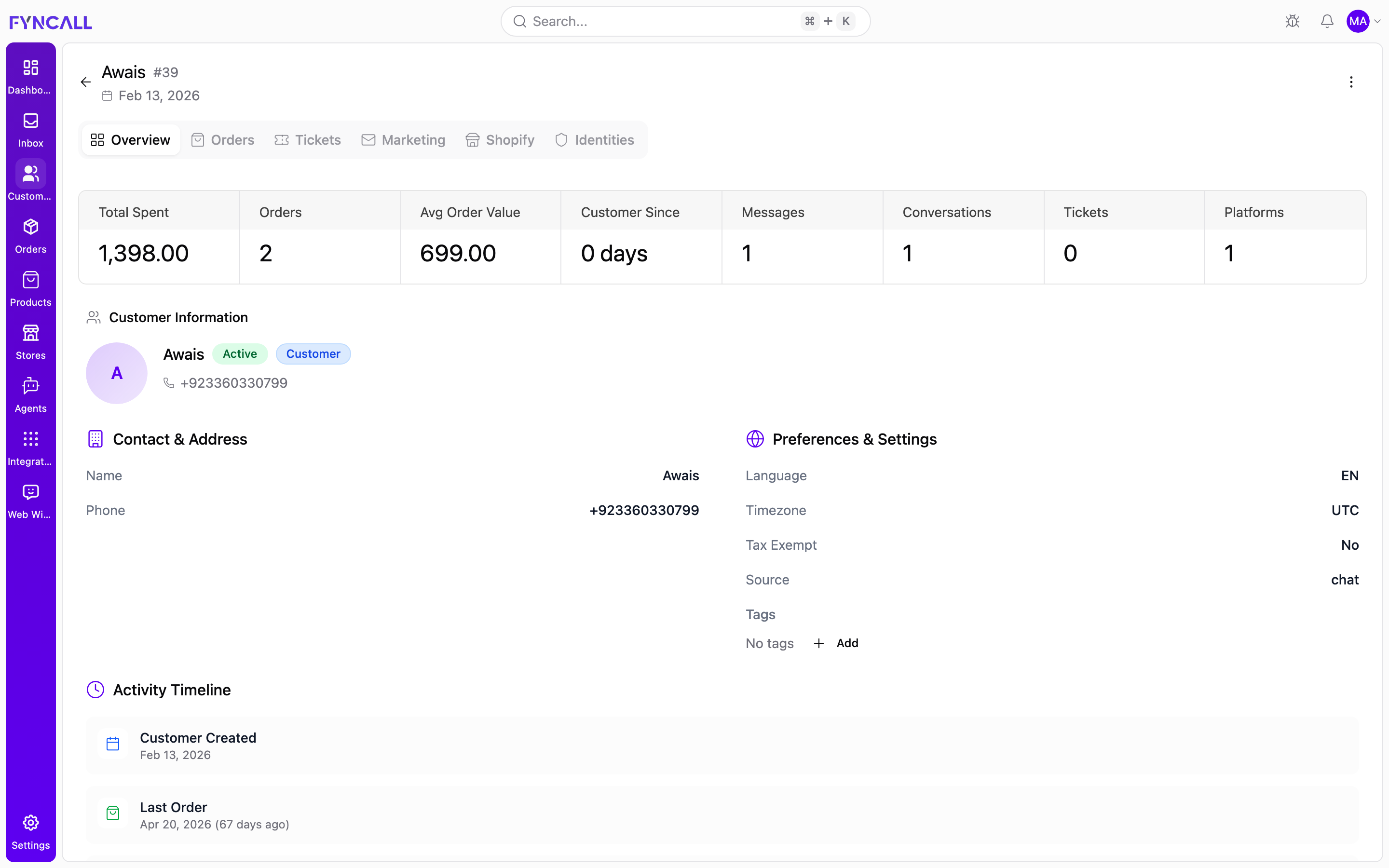
In the example above, the profile for Awais (#39) shows the key-statistics
cards (Total Spent 1,398.00, 2 Orders, 699.00 Avg Order Value, and
more), the Customer Information card with Active and Customer badges,
the Contact & Address and Preferences & Settings panels, and an
Activity Timeline of milestone events.
Page header
The top of the profile shows:
- A back arrow to return to the list
- The customer's name and internal contact ID (for example,
#1) - The date the record was created
- A ⋮ (more) menu with quick actions: Edit, Deactivate / Activate, and Delete
See Managing Customers for edit, activate/deactivate, and delete details.
Profile tabs
The profile is organized into six tabs:
| Tab | Contents |
|---|---|
| Overview | Key stats, identity, contact and address, preferences, tags, activity timeline, conversations, and notes |
| Orders | The customer's order history |
| Tickets | Support tickets raised by the customer |
| Marketing | Email and SMS marketing consent |
| Shopify | Shopify account details and sync status |
| Identities | Connected channel identities (cross-channel linking) |
Overview tab
Key statistics
A row of cards summarizes the relationship at a glance:
| Card | Shows |
|---|---|
| Total Spent | Lifetime spend |
| Orders | Number of orders placed |
| Average Order Value | Average value per order |
| Customer Since | How long they have been a customer (in days) |
| Messages | Total messages exchanged |
| Conversations | Total conversations |
| Tickets | Total support tickets |
| Platforms | Number of channels they use |
Customer Information
Shows the avatar (initials), full name, and a set of status badges:
| Badge | Meaning |
|---|---|
| Active / Inactive | Whether the contact account is active |
| Blocked | Messages from this contact are blocked |
| Lifecycle badge | Prospect, Customer, Active, At Risk, Churned, or VIP |
| Synced | Linked to a Shopify customer record |
| Tax Exempt | The customer is exempt from tax |
Quick contact links (email, phone, location) sit directly below the name.
Contact and Address
Displays the stored contact details, where available: Name, Email, Phone, Company, Address, Address Line 2, City / Province, Country, and Postal Code. Email and phone are clickable.
Preferences and Settings
| Field | Description |
|---|---|
| Language | Preferred language code (e.g., EN) |
| Timezone | The customer's timezone |
| Currency | Preferred currency (e.g., USD) |
| Tax Exempt | Yes or No |
| Source | The channel the contact originated from (e.g., whatsapp) |
| Tags | Tags applied to the contact, with an + Add control |
See Tags for adding and removing tags.
Activity Timeline
A chronological list of milestone events for the contact:
- Customer Created — when the record was added
- Last Order — date of the most recent order (with relative "X days ago")
- Last Interaction — most recent message exchange
- Last Updated — when the record last changed
Conversations
Lists the customer's conversation threads with a count badge. Each conversation card shows:
- The conversation title (or
Conversation #id) - A channel badge — WhatsApp, Instagram, Email, WebChat, or Telegram
- A status badge — Active, Resolved, or Escalated
- A mode badge — AI or Human
- Sentiment, when available
- The last activity time
Selecting a conversation opens it in the Inbox. If there are none, the section shows "No conversations found."
Notes
Internal team notes that are not visible to the customer. See Notes for how to add, edit, pin, and delete them.
Orders tab
Shows the same key statistics cards plus a Recent Orders table:
| Column | Description |
|---|---|
| Order ID | Order number (e.g., #1001) |
| Date | Order date |
| Status | Order status badge |
| Items | Number of items |
| Total | Order total |
| Payment | Payment status badge |
Selecting a row opens that order in the Orders area. On smaller screens, orders display as cards. If there are none, the tab shows a "No Orders" message.
Tickets tab
A Recent Tickets table of support tickets raised by the customer:
| Column | Description |
|---|---|
| Title | Ticket subject |
| Status | Open, In Progress, Resolved, or Closed |
| Priority | Low, Medium, High, or Urgent |
| Category | Ticket category |
| Created | Date created |
| Resolved | Date resolved, or - if still open |
Marketing tab
Shows the customer's marketing consent across two sections.
Email Marketing
| Field | Description |
|---|---|
| Accepts Marketing | Yes or No |
| Email State | Subscribed or Not Subscribed |
| Opt-in Level | Single Opt-In, Confirmed Opt-In, or Not Set |
| Consent Updated | When consent last changed |
SMS Marketing
| Field | Description |
|---|---|
| SMS State | Subscribed or Not Subscribed |
| Opt-in Level | Single Opt-In, Confirmed Opt-In, or Not Set |
| Consent Updated | When consent last changed |
| Collected From | Where SMS consent was captured |
Shopify tab
Visible for contacts linked to a Shopify store. Shows the Shopify ID, Shopify State (Enabled / Disabled), Email Verified status, the Shopify created/updated timestamps, and the last sync times (to and from Shopify). If present, Shopify Tags and a Shopify Note are also shown.
Identities tab
Fyncall links every channel a customer uses to a single profile, so a person who messages on WhatsApp and later emails you is recognized as the same contact. The Identities tab lists each connected channel identity as a card.
Each identity card shows:
- A profile picture or platform icon
- The platform display name, with a Primary badge on the main contact method
- The username or identifier on that platform
- Verified status and an Active / Inactive badge
- Interaction count and last interaction time
- For Instagram: follower count, plus Follows You and You Follow badges
Contacts are matched and merged across channels by phone number and email. When the same phone or email appears on two channels, those identities are linked under one customer profile so all history stays together.
If a contact has only ever used one channel, you will see a single identity here. If none are recorded, the tab shows "No identities found."
Related pages
- Customers Overview — the list, search, filters, and KPIs
- Managing Customers — creating, editing, blocking, tags, and notes