Guardrails
Guardrails are safety controls that define what an agent must never say, what it must always follow, and how safely it can operate tools. Configure them from the Guardrails tab of an agent.
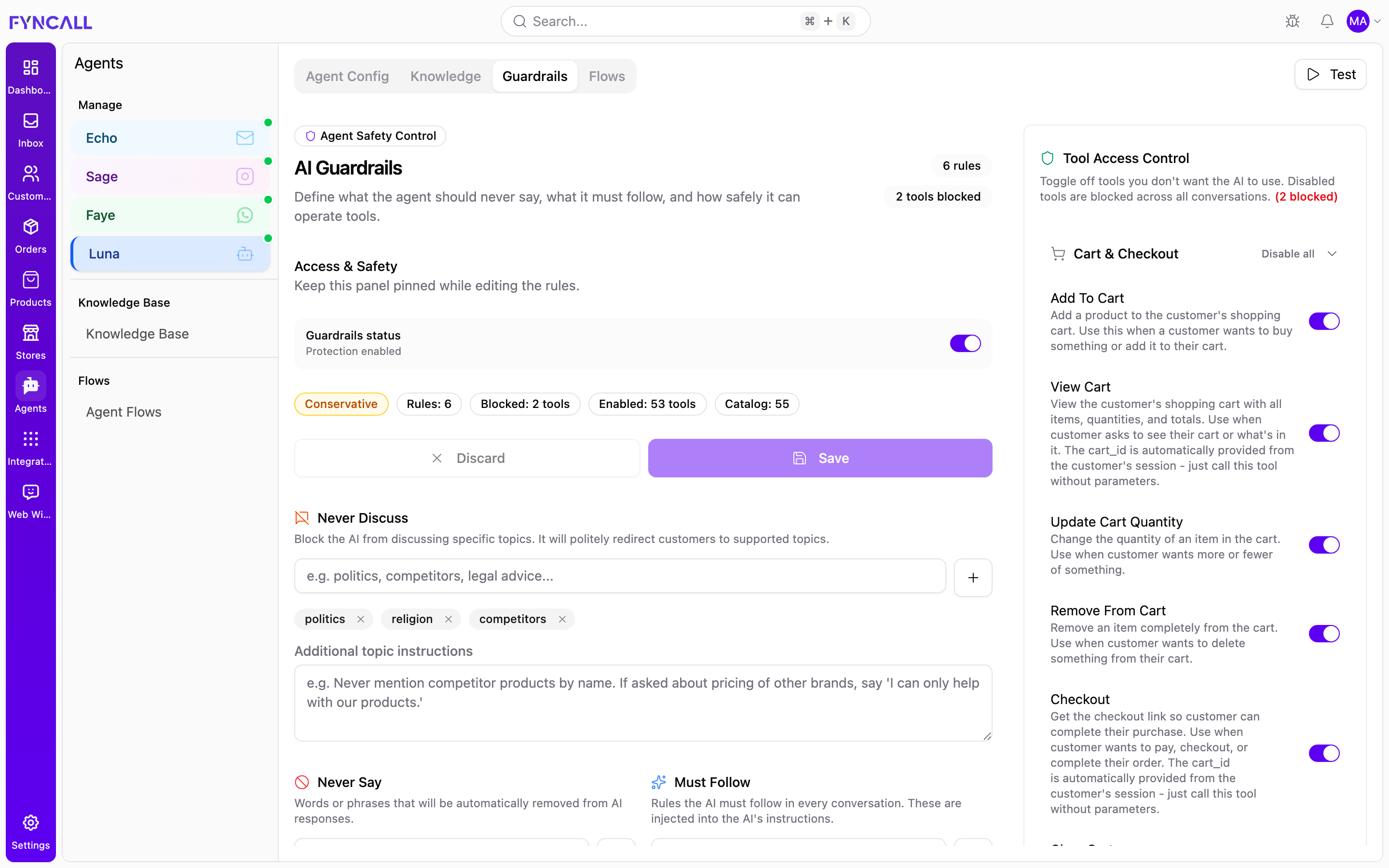
Overview
Open an agent and select the Guardrails tab. The panel is split into two areas:
- The main column holds the rule editors (topics, words, custom rules, and response style).
- The right column holds Tool Access Control.
A header titled AI Guardrails summarizes how many rules and blocked tools are configured (for example, 6 rules, 2 tools blocked), and shows an Unsaved changes badge while you edit.
Guardrails apply to a single agent. Configure them per agent (Echo, Sage, Faye, Luna each have their own).
Set guardrails step by step
- Open the Guardrails tab. Select an agent in the sidebar, then click the Guardrails tab.
- Turn protection on. In Access & Safety, make sure the Guardrails status switch is enabled. The posture badge updates to reflect how restrictive the agent is.
- Block topics. Under Never Discuss, add topics (such as politics, religion, competitors) and optionally add Additional topic instructions.
- Ban words. Under Never Say, add any words or phrases to strip from responses.
- Add required rules. Under Must Follow, add rules the AI must obey in every conversation.
- Set the response style. Choose a Required Tone and, optionally, a Max Response Length.
- Restrict tools. In Tool Access Control, toggle off any tools the agent should not use.
- Save. Click Save in the Access & Safety panel to apply your configuration.
Access & Safety
The Access & Safety panel controls the overall state of guardrails for the agent:
| Control | Description |
|---|---|
| Guardrails status | A switch that enables or disables protection. When off, the configured rules are paused. |
| Posture badge | A quick read of how restrictive the agent is, based on the combined count of active rules and blocked tools: Paused (guardrails off), Open (fewer than 3), Balanced (3–7), or Conservative (8 or more). |
| Discard | Reverts unsaved changes. |
| Save | Persists your guardrails configuration. |
The panel also shows counters for active Rules, Blocked tools, Enabled tools, and the total tool Catalog (for example, Rules: 6, Blocked: 2 tools, Enabled: 53 tools, Catalog: 55).
Never Discuss (Blocked Topics)
Block the AI from discussing specific topics. When a customer raises a blocked topic, the agent politely redirects them to supported topics.
- Add a topic (for example, politics, competitors, legal advice) and press Enter or the + button.
- Added topics appear as removable chips.
- Use Additional topic instructions to give the AI nuanced guidance — for example, "Never mention competitor products by name. If asked about pricing of other brands, say 'I can only help with our products.'"
Never Say (Prohibited Words)
Words or phrases that are automatically removed from AI responses.
- Add a word or phrase (for example, a competitor name or an internal term) and press Enter or +.
- Prohibited words appear as removable chips.
Must Follow (Custom Rules)
Rules the AI must follow in every conversation. These are injected directly into the agent's instructions.
- Add a rule such as "Never offer more than 10% discount" or "Always suggest a warranty on electronics."
- Each rule is listed and can be removed individually.
Response Style
Control the tone and length of AI responses:
| Setting | Description |
|---|---|
| Required Tone | The tone the AI must use (for example, professional, casual, friendly, formal). |
| Max Response Length (characters) | An optional cap on how long responses can be. |
Tool Access Control
The Tool Access Control panel lets you decide which tools the agent may use. Tools are grouped into categories, each with a switch per tool.
- Toggle a tool off to block it across all conversations for this agent.
- Use Enable all / Disable all on a category header to toggle the whole group.
- Blocked tools and counts are flagged with badges so you can see restrictions at a glance.
Tool categories include:
| Category | Examples |
|---|---|
| Product & Catalog | Search products, check availability |
| Cart & Checkout | Cart operations |
| Orders & Tracking | Look up orders, tracking status |
| Order Modifications | Update shipping address, add notes, cancel orders |
| Refunds & Returns | Refund eligibility and status |
| Customer Identification | Look up customer details |
| Knowledge & Policies | Search the knowledge base |
| Support & Escalation | Create tickets, escalate |
| General | Other utility tools |
The available tools depend on what your store and integrations support, so the catalog shown for each agent may vary.
Saving Changes
Edits are not applied until you click Save in the Access & Safety panel. The Unsaved changes badge appears while you have pending edits, and Discard reverts them.
Combine guardrails with your agent's personality and knowledge base. The personality sets the voice, the knowledge base provides the facts, and guardrails enforce the boundaries.