Messaging Channels
The Fyncall Inbox brings every customer conversation into one place, no matter where it came from. But each channel behaves a little differently — messages arrive in different ways, and some platforms put a time limit on when you can reply. This page explains each channel, the rules it enforces, and how to reply on it.
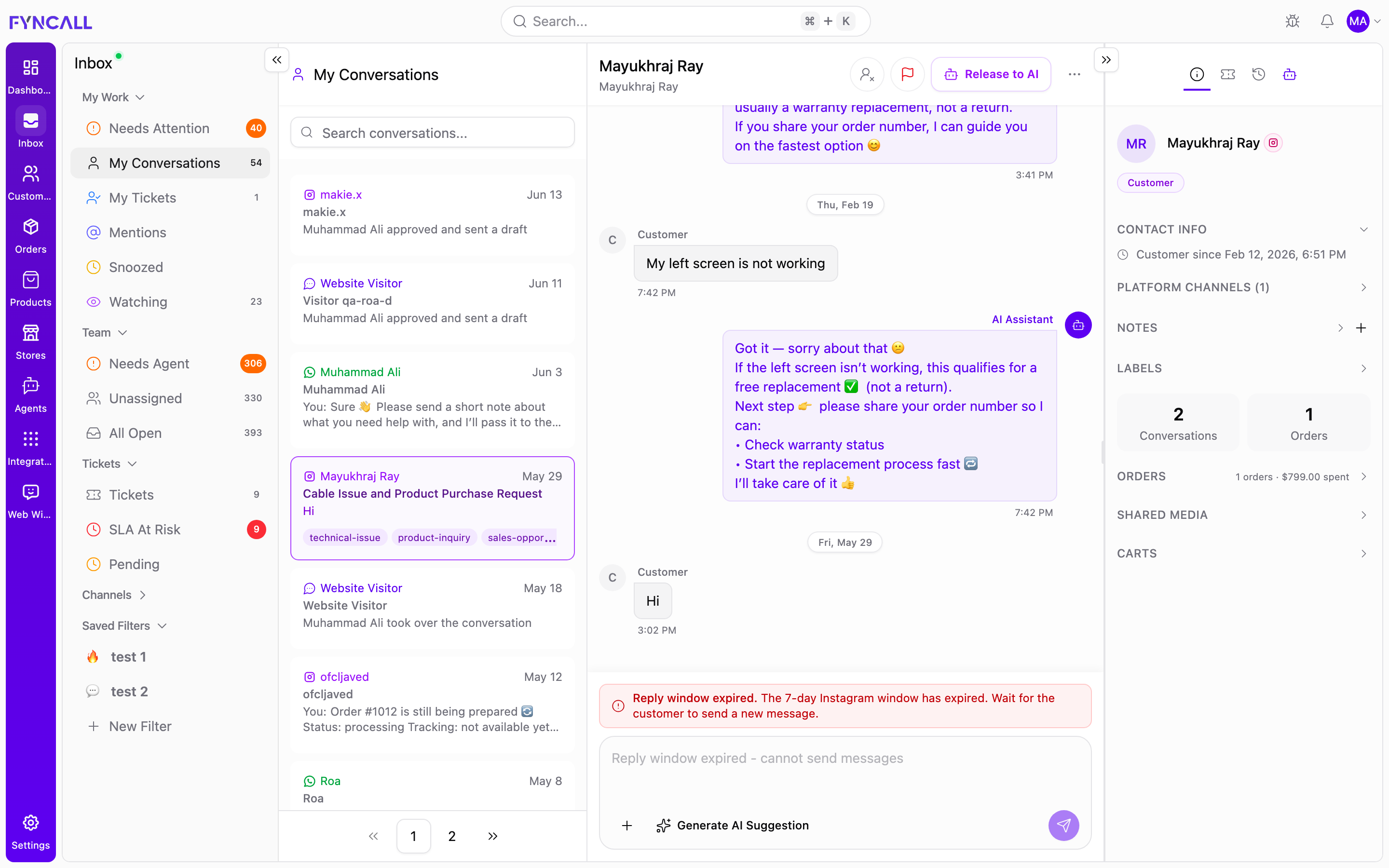
Channel at a Glance
| Channel | Badge Colour | Reply Window | When the Window Closes |
|---|---|---|---|
| Green | 24 hours from the customer's last message | Free-form messages stop; pre-approved templates can still be sent (if available) | |
| Instagram (DM) | Pink | 7 days from the customer's last message | You cannot reply until the customer messages again |
| Instagram (comments & story replies) | Pink | Engagement-based | Reply publicly or move the conversation to a DM |
| Slate | No limit | Reply any time | |
| Web chat | Slate | No limit | Reply any time (customer sees it when the widget is open or on their next visit) |
Only the channels you have connected appear in the inbox. Each channel shows a coloured badge next to the customer's name so you always know where a conversation came from.
WhatsApp
WhatsApp Business conversations show a green badge in the inbox.
How Messages Arrive
Customers message your connected WhatsApp Business number. Each customer becomes a single, continuous thread — every new message lands in the same conversation.
The 24-Hour Service Window
WhatsApp enforces a 24-hour customer-service window. The clock starts from the customer's last message and resets every time they reply. While the window is open, you can send free-form text, attachments, and quick replies.
The composer shows a live countdown of the time remaining (for example, 2h 14m 30s). When less than 2 hours remain, the countdown switches to an urgent state so you can prioritise the reply.
When the Window Expires
Once 24 hours pass with no new customer message, a red banner appears:
Reply window expired. The 24-hour WhatsApp window has expired. Messages will be sent as templates if available.
At this point free-form replies are blocked, but you can still reach the customer using a pre-approved message template. See WhatsApp Templates for how templates are created and approved.
How to Reply on WhatsApp
- Open the conversation and Take Over if the AI is still handling it.
- Type your reply in the message input (use
*bold*,_italic_,~strikethrough~, or`monospace`for formatting). - Add attachments or a quick reply if needed via the + (More actions) menu.
- Press Cmd+Enter (Mac) / Ctrl+Enter (Windows) to send.
Instagram
Instagram conversations show a pink badge. Fyncall handles two kinds of Instagram conversation: direct messages and public engagement (comments and story interactions).
Direct Messages (DMs)
DMs work like a normal chat thread. Instagram enforces a 7-day reply window measured from the customer's last message.
When the window expires, a red banner appears:
Reply window expired. The 7-day Instagram window has expired. Wait for the customer to send a new message.
Unlike WhatsApp, there is no template fallback for Instagram — the composer is locked and shows the placeholder "Reply window expired — cannot send messages". You must wait for the customer to message again before you can reply.
Comments & Story Interactions
Instagram also brings public engagement into the inbox. These conversations are created from:
| Type | What It Is |
|---|---|
| Post Comment | A comment left on one of your feed posts |
| Reel Comment | A comment left on one of your Reels |
| Story Reply | A reply a customer sent to your Story |
| Story Mention | A mention of your account in someone's Story |
For these, you can respond in two ways, shown in the conversation as either Replied Publicly or Sent DM:
- Reply publicly — your response appears under the original comment, visible to everyone.
- Send a DM — move the conversation into a private direct message.
Use a public reply for quick, general answers that other customers benefit from seeing. Move to a DM when the conversation involves order details, personal information, or anything you would not post publicly.
How to Reply on Instagram
- Open the conversation and Take Over if needed.
- For a DM, type your reply and send with Cmd/Ctrl+Enter — but only if the 7-day window is still open.
- For a comment or story interaction, choose to reply publicly or send a DM.
Email
Email conversations show a slate badge and are fully threaded — related messages are grouped into one conversation automatically.
How Messages Arrive
When a customer emails one of your connected addresses, it arrives as a conversation. Replies from the customer thread back into the same conversation, and the subject line is preserved (your reply is prefixed with Re:).
Reply Window
Email has no reply window — you can reply at any time.
How to Reply on Email
- Open the email conversation. The rich text editor appears automatically.
- Compose your reply using the toolbar (bold, italic, underline, bulleted and numbered lists).
- Optionally expand the Cc field to loop in a colleague, attach files, or insert a product card.
- Press Cmd+Enter / Ctrl+Enter to send.
For the full email experience — composing new emails, managing multiple accounts, and HTML rendering — see Email Conversations.
Web Chat
Web chat conversations come from the chat widget on your website and show a slate badge. The customer appears as a Website Visitor until they share their details.
How Messages Arrive
Visitors type into the chat widget on your site. Messages arrive in real time while the visitor has the widget open. The right-hand panel shows live session details — browser, device, and the page the visitor is currently on.
Reply Window
Web chat has no reply window. You can reply at any time; the customer sees your message immediately if the widget is open, or on their next visit.
How to Reply on Web Chat
- Open the conversation and Take Over if the AI is handling it.
- Type your reply (web chat uses plain text).
- Press Cmd+Enter / Ctrl+Enter to send.
Replying When a Window Has Closed
When a reply window expires, the composer is replaced by a red notice and the Generate AI Suggestion button stays available so you can draft a response in advance. Your options depend on the channel:
| Channel | What You Can Do After Expiry |
|---|---|
| Send a pre-approved template message (if one is available) | |
| Wait for the customer to send a new message — the composer is locked | |
| Email / Web chat | Not affected — there is no window |
Prioritise conversations with a window that is about to close. WhatsApp gives you only 24 hours and Instagram 7 days from the customer's last message. Once the window closes you lose the ability to reply freely.
What's Next?
- Replying to Customers — The full step-by-step reply workflow, AI suggestions, and human takeover
- Email Conversations — Composing, threading, and managing multiple email accounts
- Managing Conversations — Claim, take over, release to AI, resolve, and snooze
- Customer Info Panel — Contact details, platform channels, orders, and shared media
- WhatsApp Templates — Create and use templates for messages outside the 24-hour window