Replying to Customers
The Fyncall Inbox gives you a single chat input to reply to customers on any channel. Whether the conversation came in through WhatsApp, Email, Instagram, or your website's chat widget, you compose your reply in the same place — and Fyncall handles the delivery.
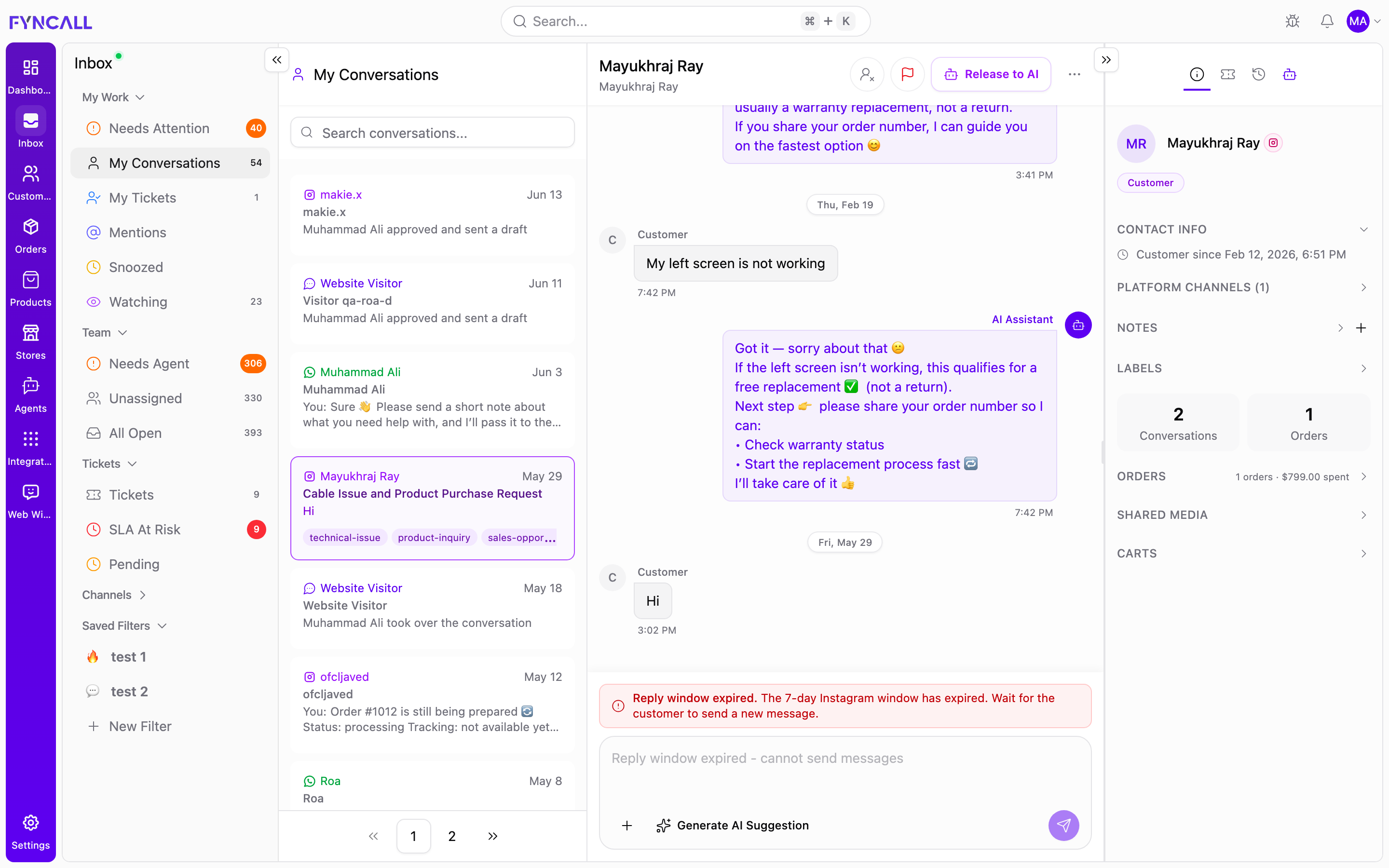
How to Reply (Step by Step)
Replying always follows the same three steps, regardless of channel:
- Select a conversation from any queue or channel list in the left sidebar. The thread opens in the centre panel.
- Take over if the AI is handling it. If you see a banner such as "AI mode is active for this conversation" or "No one is assigned. Please take over to reply," click Take Over in the conversation header. This switches the conversation to Human mode and pauses the AI so your reply goes out directly. (Claiming a conversation assigns it to you but leaves the AI responding — see Managing Conversations.)
- Compose and send. Type in the message input at the bottom, optionally add an attachment, quick reply, or AI suggestion, then press Cmd+Enter (Mac) / Ctrl+Enter (Windows) or click Send.
Channels enforce different reply windows — WhatsApp gives you 24 hours and Instagram 7 days from the customer's last message. See Messaging Channels for how each channel behaves and what to do when a window closes.
Releasing Back to AI
When you are done, you can hand the conversation back to the AI agent so it resumes responding automatically:
- Open the conversation you have taken over.
- Click Release to AI in the conversation header.
- The conversation returns to AI mode and the AI handles the next customer message.
Composing a Reply
- Click into the message input at the bottom of the conversation panel
- Type your message
- Optionally add formatting, attachments, or use a quick reply
- Press Cmd+Enter (Mac) or Ctrl+Enter (Windows/Linux) to send
You can also click the Send button to the right of the input, but using the keyboard shortcut is much faster when handling many conversations.
Text Formatting
The formatting options available to you depend on the channel the customer is using.
WhatsApp & Instagram
WhatsApp and Instagram support lightweight text formatting using special characters:
| Format | What to Type | Result |
|---|---|---|
| Bold | *your text* | your text |
| Italic | _your text_ | your text |
~your text~ | ||
Monospace | `your text` | your text |
Simply wrap your text with the symbols shown above, and the customer will see the formatted result in their messaging app.
Email
Email conversations give you a rich text editor with a formatting toolbar. You can:
- Bold, italic, and underline text using toolbar buttons
- Create bulleted and numbered lists
- Add
inline codeformatting - Insert links
- Structure your reply with clear headings
The rich text toolbar appears automatically when the conversation channel is email. You do not need to toggle it on.
Web Widget
Web Widget conversations support plain text. Your messages are delivered as-is to the customer's chat window.
File Attachments
You can send files alongside your reply on any channel. Click the attachment icon (paperclip) in the chat input to browse and upload a file.
Supported File Types
| Category | Formats | Max Size |
|---|---|---|
| Images | PNG, JPG, JPEG, GIF, WEBP | 16 MB |
| Videos | MP4, MOV, AVI | 16 MB |
| Audio | MP3, OGG, AAC | 16 MB |
| Documents | PDF, DOC, DOCX, XLS, XLSX, CSV, TXT | 25 MB |
How to Send an Attachment
- Click the paperclip icon in the message input
- Select a file from your device
- A preview of the file appears in the input area
- Add an optional text message alongside the attachment
- Press Cmd+Enter or click Send
You can also drag and drop a file directly into the conversation panel to attach it.
Quick Replies
Quick replies are pre-written responses (also known as canned responses) that you can insert with a single command. They save you from typing the same answers repeatedly.
Using Quick Replies
- Type
/in the message input - A menu appears showing your available quick replies
- Continue typing to search by name or keyword
- Click the reply you want, or press Enter to select the highlighted one
- The text is inserted into your message input — edit it if needed
- Press Cmd+Enter to send
Managing Quick Replies
You can create and organize quick replies from Settings > Quick Replies:
- Create a new quick reply with a title and message body
- Edit existing replies to keep them up to date
- Delete replies you no longer need
- Use variables like the customer's name to personalize each response automatically
Quick replies are shared across your team, so any agent can use them. Changes made by one agent are instantly available to everyone.
AI Suggestions
Fyncall's AI can draft a reply for you based on the conversation context, your knowledge base, and the customer's history. This is especially useful for complex questions or when you want a starting point to refine.
Getting an AI-Suggested Reply
- Click the Generate AI Suggestion button (sparkle icon) below the message input
- While it works, the button shows "Generating suggestion…"
- The suggestion appears in a purple AI Suggestion box above the composer
- Review the suggestion, then choose to use it, Regenerate it, or Dismiss it
- Edit the text as needed and press Cmd+Enter to send
The Generate AI Suggestion button stays available even when a reply window has expired, so you can prepare a draft in advance.
AI suggestions pull from your knowledge base, product catalog, and order data. The more complete your knowledge base, the better the suggestions will be. You can also use the AI Copilot in the right panel for more detailed assistance like summaries, customer insights, and sentiment analysis.
Reply Windows
Some messaging platforms enforce time limits on when you can reply to a customer. If the window expires, you can no longer send a message until the customer reaches out again.
| Channel | Reply Window | What Happens When It Expires |
|---|---|---|
| 24 hours from the customer's last message | Free-form messages stop. The banner reads "The 24-hour WhatsApp window has expired. Messages will be sent as templates if available." Only pre-approved templates can be sent. | |
| 7 days from the customer's last message | The composer locks with "Reply window expired — cannot send messages." You must wait for the customer to message again. | |
| No limit | You can reply at any time. | |
| Web Widget | No limit | You can reply at any time (customer must have the widget open or revisit later). |
For a full breakdown of how each channel works — including Instagram comments and story replies — see Messaging Channels.
WhatsApp gives you only 24 hours and Instagram gives you 7 days to reply after the customer's last message. Once the window closes, you lose the ability to respond freely. Prioritize conversations with expiring windows to avoid missing your chance to reply. Fyncall shows a warning indicator on conversations approaching their reply window deadline.
Keyboard Shortcuts
| Action | Shortcut (Mac) | Shortcut (Windows/Linux) |
|---|---|---|
| Send message | Cmd+Enter | Ctrl+Enter |
| New line | Shift+Enter | Shift+Enter |
| Open quick replies | / | / |
For a full list of keyboard shortcuts, see Keyboard Shortcuts.
Channel Comparison
Not every feature is available on every channel. Use this table as a quick reference:
| Feature | Web Widget | |||
|---|---|---|---|---|
| Text messages | Yes | Yes | Yes | Yes |
| Bold / Italic | Yes (symbols) | Yes (symbols) | Yes (toolbar) | Plain text only |
| Rich text editor | No | No | Yes | No |
| Image attachments | Yes | Yes | Yes | Yes |
| Video attachments | Yes | Yes | Yes | Yes |
| Document attachments | Yes | No | Yes | Yes |
| Audio attachments | Yes | No | Yes | No |
| Quick replies | Yes | Yes | Yes | Yes |
| AI suggestions | Yes | Yes | Yes | Yes |
| Reply window | 24 hours | 7 days | Unlimited | Unlimited |
Best Practices
- Reply quickly — Especially on WhatsApp where you have a tight 24-hour window. Prioritize conversations that show a reply window warning.
- Preview before sending — Review AI suggestions and quick replies before sending. A small personalization goes a long way.
- Match the channel tone — WhatsApp and Instagram are conversational and concise. Email can be more structured and detailed.
- Use formatting sparingly — Bold a key piece of information or a next step. Overformatting makes messages harder to read.
- Leverage your knowledge base — The better your knowledge base, the more accurate AI suggestions will be. Keep articles and FAQs up to date.
What's Next?
- Messaging Channels — How each channel works, its reply window, and how to reply on it
- AI Copilot — Get AI-powered help drafting replies, summarizing conversations, and looking up customer data
- Commerce Actions — Send products, create orders, and manage carts directly from the conversation
- Keyboard Shortcuts — Speed up your workflow with shortcuts for common actions